How to Export Limitless AI Data and Import to Hedy (Pre–Dec 19 Migration Guide)
Limitless AI shuts down December 19, 2025 after Meta's acquisition. Step-by-step migration guide: bulk export from the Limitless app, individual transcripts, AI Pendant Lifelog audio, combining chunked OGG files, and importing audio and transcripts into Hedy.
With Limitless AI shutting down following Meta’s acquisition, users need to migrate their data before the December 19 deadline. Limitless, formerly known as Rewind, built a platform designed around passive recording and transcribing of your conversations. Now that Meta has acquired the startup Limitless, existing customers face a choice: accept new terms of service under Meta, or export their data and find an alternative.
This guide walks you through exporting your Limitless data—including recordings from the AI Pendant wearable device—and importing it into Hedy.
Important: EU and UK users have until December 19, 2025 to export their data before it’s permanently deleted. Don’t wait.
What You Can Bring to Hedy from Limitless
Hedy can import:
- Audio files from Limitless recordings (MP3, WAV, M4A, OGG, MP4, MOV, and more)
- Existing transcripts (plain text)
Once imported, Hedy processes your recordings with full AI-powered analysis—summaries, key points, action items, and the ability to chat about the content. Unlike Limitless’s approach of passive recording, Hedy provides real-time coaching and suggestions during your conversations.
Step 1: Export Your Data from the Limitless App
Option A: Bulk Export from Limitless AI
This exports your entire Limitless history at once—all recordings, transcripts, and meeting data.
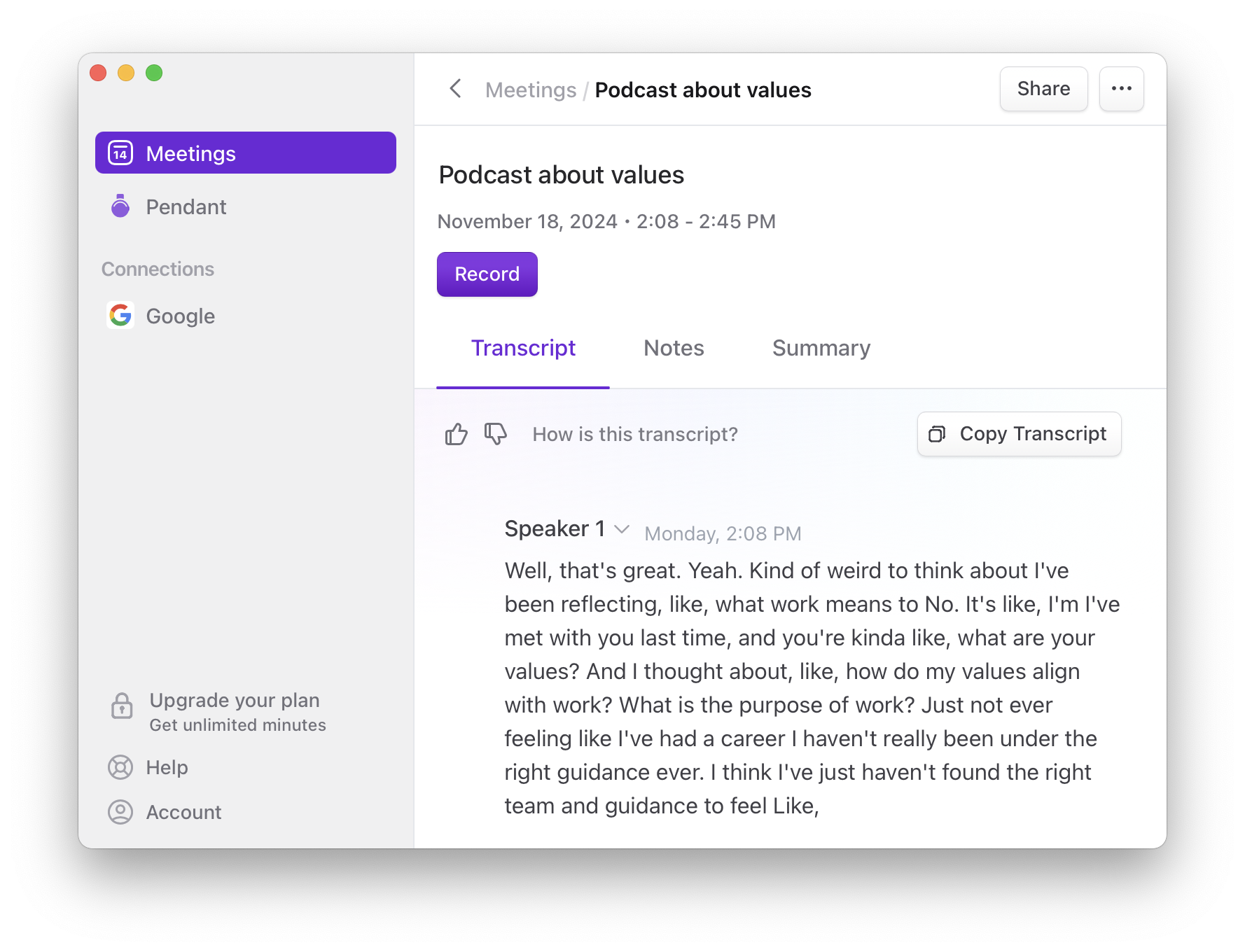
- Open the Limitless web app at app.limitless.ai or the desktop app
- Click Data Exports in the left panel
- Check Include audio files (important if you want Hedy to re-process your recordings)
- Click Request Export
- Wait for the email notification—this can take 30-90 minutes for frequent users
- Download the export file when ready
The bulk export includes all your Limitless AI data: meeting recordings, Pendant lifelog audio, transcripts, and summaries.
Option B: Export Individual Meetings from Limitless (Recommended)
For specific meetings you want to preserve from your Limitless app:
- Open the meeting in the Limitless app
- Click on the Transcript, Notes, or Summary tab
- Click the corresponding “Copy” button on the right side
- Paste into a text file for later import into Hedy
Note: The Limitless desktop and web app doesn’t support copying multiple sections at once.
Option C: Export Limitless AI Pendant Recordings
The Limitless Pendant is a wearable AI device that captures continuous audio throughout your day. If you own this AI pendant hardware, here’s how to export your Pendant recordings (Lifelogs):
- Open the Limitless iOS app
- Go to the Lifelog view
- Select the sections you want to export by tapping the checkboxes
- Tap the three dots (⋯) in the bottom right
- Select Download audio to save the recording
- To copy transcripts: tap the copy icon at the bottom and select your format
The AI Pendant stores recordings locally via Bluetooth sync, so make sure your device is synced before exporting.
Step 2: Understand Your Exported Limitless Files
When you export audio from Limitless AI, you’ll notice:
- Files are in OGG format (Ogg Opus)
- Pendant recordings are chunked into smaller segments, organized by day
- Meeting recordings from the Limitless desktop app are typically single files
This matters for how you’ll import into Hedy. The Limitless AI Pendant wearable creates multiple small recording files rather than one continuous file, which requires some extra steps if you want to combine them.
Step 3: Import Limitless Data into Hedy
Importing Audio and Recording Files
This works for individual meeting recordings or shorter Pendant sessions:
- Open Hedy on your Mac, Windows, iOS, or Android device
- Go to Sessions
- Tap the + button
- Select Create Session from File
- Choose your audio or video file from Limitless
- Hedy will transcribe and analyze the recording
For detailed instructions: Importing Audio and Video Files to Hedy
Importing Transcripts from Limitless
If you exported transcripts from the Limitless app:
- Open Hedy
- Go to Sessions
- Tap the + button
- Select Create Session from Transcript
- Paste your transcript text
- Hedy will process it into a full session with summaries and insights
For detailed instructions: Importing Existing Transcripts to Hedy
Advanced: Combining Chunked AI Pendant Audio Files
If you have a full day of Limitless Pendant recordings split across multiple OGG files and want to combine them into a single session, here’s how (requires some technical comfort):
On Mac/Linux:
- Open Terminal
- Navigate to your folder of OGG files from the Limitless AI Pendant
- Create a list of files in order:
for f in *.ogg; do echo "file '$f'"; done | sort > mylist.txt - Combine them with ffmpeg:
ffmpeg -f concat -safe 0 -i mylist.txt -c copy combined.ogg - Import the combined recording file into Hedy
On Windows:
- Open PowerShell
- Navigate to your folder of OGG files
- Create a list file:
Get-ChildItem *.ogg | Sort-Object Name | ForEach-Object { "file '$($_.Name)'" } | Out-File -Encoding ASCII mylist.txt - Combine with ffmpeg:
ffmpeg -f concat -safe 0 -i mylist.txt -c copy combined.ogg - Import the combined file into Hedy
Note: You’ll need ffmpeg installed. On Mac, you can install it via Homebrew: brew install ffmpeg
Tips for a Smooth Migration from Limitless AI
- Process on desktop if possible. Audio imports process much faster on Mac or Windows than on mobile devices.
- Prioritize what matters. You may not need to import every Limitless recording. Focus on recordings you’ll actually reference again.
- Set the correct date. When importing into Hedy, you can adjust the session date to match when the original recording took place.
- Use Topics to organize. Once imported, use Hedy’s Topics feature to group related sessions together—by client, project, or subject. This makes your imported Limitless data searchable and organized.
- Don’t wait until December 19. Start your export from Limitless now. Large exports can take time, and you don’t want to be scrambling on the deadline.
Why Users Are Switching from Limitless AI to Hedy
As you migrate from Limitless, you’ll notice Hedy takes a different approach to AI-powered conversation assistance:
- Active coaching vs. passive recording. Limitless focused on recording and transcribing everything—a wearable recording device approach. Hedy provides real-time suggestions and insights during your conversations, helping you contribute more effectively in the moment.
- Session-based privacy. You start a Hedy session when you want coaching; you’re in control of what gets recorded. No always-on wearable required.
- No subscription required for basics. Hedy offers a generous free tier, with an unlimited plan for power users.
- No extra hardware. Works on your existing devices—no AI pendant or wearable AI device needed.
Dan Siroker, Co-founder and CEO of Limitless, started Limitless five years ago (as Rewind) with a vision to bring personal superintelligence to everyone. Meta recently announced a new vision for AI-enabled wearables, and has acquired Limitless to help bring that shared vision to life. For Limitless users who don’t share this vision—or who have privacy concerns about Meta—Hedy offers an independent alternative focused on making you the brightest person in the room.
Frequently Asked Questions
When is the Limitless AI data export deadline?
EU and UK users have until December 19, 2025 to export their Limitless AI data before it is permanently deleted following Meta’s acquisition. Bulk exports can take 30–90 minutes to process for active users, and large exports including Pendant audio take even longer. Don’t wait until the last week — start the export now and migrate to Hedy or another alternative.
How do I export my data from Limitless AI?
Open the Limitless web app at app.limitless.ai, click Data Exports in the left panel, check Include audio files, and click Request Export. You’ll receive an email when the archive is ready (30–90 minutes for active users). For individual meetings, open the meeting and use the Copy buttons under the Transcript, Notes, or Summary tabs to extract them one by one.
How do I import Limitless audio and transcripts into Hedy?
In Hedy on Mac, Windows, iOS, or Android, go to Sessions, tap the + button, and choose Create Session from File for audio (OGG, MP3, WAV, M4A, MP4, MOV, and others) or Create Session from Transcript for plain text. Hedy will run full AI analysis — summary, key points, action items, and chat — on the imported content, and you can adjust the session date to match the original recording.
How do I combine multiple Limitless AI Pendant audio chunks into one file?
Pendant recordings are chunked OGG files. On Mac or Linux, list the files in order with for f in *.ogg; do echo "file '$f'"; done | sort > mylist.txt, then concatenate with ffmpeg -f concat -safe 0 -i mylist.txt -c copy combined.ogg and import the combined file into Hedy. Windows users can do the same in PowerShell using Get-ChildItem to build the list. Install ffmpeg first (on Mac: brew install ffmpeg).
Is Hedy a good replacement for Limitless AI?
Hedy is an independent alternative for users who want AI-powered conversation help without the always-on wearable model or Meta ownership. It runs on devices you already have, offers real-time coaching and suggestions during conversations rather than passive lifelogging, supports session-based privacy you control, and includes a generous free tier. Limitless data — recordings and transcripts — imports cleanly via the steps above.
Need Help Migrating from Limitless?
If you run into issues importing your Limitless AI data, reach out to us at support@hedy.bot or through the in-app chat. We’re happy to help you get set up.
Switching from Limitless AI? Get 3 months free with Hedy →
About the author
Julian Pscheid is the founder and CEO of Hedy AI, a real-time AI meeting coach used by tens of thousands of professionals worldwide. He writes about how AI is changing the way people prepare for, capture, and understand important conversations.