Best AI Note Takers for In-Person Meetings in 2026
Seven AI note takers for meetings in the room and phone calls, compared on how they capture, who they label, help during the talk, privacy, and price.

What is the best AI note taker for in-person meetings?
Many AI note takers were built for video calls first. They send a bot into Zoom or Teams, and the bot has a clean audio feed with every participant’s name attached. None of that exists across a table. A client meeting, a job interview, a doctor’s appointment, or a conversation in a café gives the app one microphone, several voices at different distances, and nobody’s name.
That changes what matters. The questions are how well the device hears the room, whether the app can tell who said what, whether it can help while you’re still talking, and what happens to a conversation that was never meant to leave the room. Phone calls are a separate problem again, because iPhone and Android stop most apps from hearing them at all.
This guide compares seven tools on those questions, using each vendor’s own pricing pages and documentation.
AI note takers for in-person meetings at a glance
| Tool | Best for | How it captures in person | Phone calls | Help during the conversation | Starting paid price |
|---|---|---|---|---|---|
| Hedy | Help while you talk | Phone, tablet, or laptop microphone, started from an Apple Watch if you like | iPhone calls taken on a Mac, live, or an imported call recording | Automatic Suggestions appear on their own | $12.99/mo or $99.99/yr |
| Otter | Searchable archive with playback | Phone or laptop microphone | Record with the phone’s dialer, then import | Live summary and AI Chat, plus Live Assist coaching on Enterprise | $16.99/mo or $99.99/yr |
| Plaud | A dedicated recorder | NotePin wearable or Note recorder | Note clips to the phone and captures both sides | None, transcript after upload | $17.99/mo or $99.99/yr, plus a $159 to $189 device |
| Apple Notes and Voice Memos | Free on iPhone | iPhone microphone | Built-in Call Recording (not in the EU) | Live transcript | Free |
| Google Recorder | Free on Pixel | Pixel microphone | Call Notes in the Phone app on recent Pixels | Live transcript | Free |
| Jamie | Processing in Europe | Phone or laptop microphone | Not supported on mobile | Live transcript, and Sidekick answers on desktop | $29/mo or $24/mo yearly |
| Granola | Typing your own notes | Phone or laptop microphone | Outbound calls through its own dialer, where your country and carrier allow | Granola Chat answers when you ask | $14/mo, monthly only |
Prices are per user, in US dollars, from each vendor’s website (app store prices can differ), and they change often, so confirm them before you buy.
What should you look for in an in-person note taker?
How it hears the room. A phone in the middle of the table picks up everyone reasonably well. A phone in your pocket or a microphone clipped to your collar hears you clearly and the other person much less. Check whether the app keeps recording when the screen locks, because in a two-hour meeting it will.
Whether it knows who spoke. In a video call the platform names each speaker. In a room, the app has to separate voices on its own, which it does well or badly depending on the engine. Labels like “Speaker 1” and “Speaker 2” are a start. Real names save you the cleanup.
When the help arrives. After the meeting, when you stop to ask, or on its own while you can still use it. In a face-to-face conversation, looking down to type a question is more noticeable than on a video call.
Where the audio goes. Many apps upload the recording to a cloud service for transcription. Some transcribe on the device and send only text for the summary. A few can run every step on the device. If the meeting is sensitive, check transcription, analysis, and storage separately.
Phone calls. If some of your important conversations happen on the phone, check this before anything else. It’s the one feature most in-person apps can’t offer, for reasons covered further down.
The 7 best AI note takers for in-person meetings
1. Hedy: best for help during the conversation
Hedy is an AI meeting coach that runs on your iPhone, Android phone, iPad, Mac, Windows PC, or the web, and listens through the device’s microphone. Put the phone on the table, start a session, and then lock the screen if you like: Hedy keeps listening in the background. You can also start and stop sessions from an Apple Watch, or use a wireless microphone or wearable when the room is large.
What sets Hedy apart is what happens during the meeting, on every plan including the free one. Hedy’s Automatic Suggestions surface questions to ask, gaps in the discussion, and points worth clarifying on their own, so you get help without stopping to type. In a client meeting that might be a detail the client skipped over. In a job interview, a follow-up you’d otherwise think of in the car. Afterward you get the transcript, a summary, detailed notes, and to-dos.
Speech recognition runs on your device by default, so the audio isn’t sent anywhere to be transcribed. Hedy keeps a temporary audio cache on the device to work out who spoke, then deletes it, and it saves a recording only if you turn that on. Both of Hedy’s on-device speech engines also work out who is speaking, on the device: live as you talk with Nemotron on Apple hardware, and at the end of the session otherwise. Hedy can then put real names on those speakers when someone is introduced or addressed by name. The summaries and suggestions use cloud AI by default, through partners that don’t keep the content or train on it. On an Apple Silicon Mac, a Windows PC with a capable GPU, iPhone 15 Pro or later, an M-series or A17 Pro iPad, or a supported Android phone, Local AI Processing moves the analysis onto the device too, and it works offline.
For phone calls, Hedy can’t hear a call on the same phone, because iOS and Android don’t let any ordinary app do that. If you have a Mac, take your iPhone calls on it and Hedy captures both sides live. Otherwise, record the call with your phone’s built-in recorder and import the file. Both routes are in the phone call guide.
Put each client, project, or health journey in its own Topic, and each new session in it starts with prep notes from the earlier ones.
Pricing. Free for 5 hours a month, including the first 30 minutes of Automatic Suggestions in each session. Pro is $12.99 a month or $99.99 a year and adds unlimited sessions, 120 minutes of suggestions per session, Topics, and imports of past recordings (pricing).
Watch out for. Cloud AI is the default because it’s faster and a step ahead in quality, so the fully local mode is something you switch on. Hedy doesn’t record video.
Hedy is our product.
2. Otter: best for a searchable archive with audio playback
Otter records in person through its iPhone and Android apps, and on Mac and Windows through the desktop app. It labels speakers, shows a live summary as the conversation goes, and AI Chat answers questions about it while it’s still running. On Enterprise plans, Live Assist also surfaces questions and talking points during calls. Otter keeps the audio, so you can tap any line of the transcript and hear exactly how it was said.
For phone calls, Otter pauses when a call takes the microphone. Its documented workaround is to record the call with the phone’s built-in recorder and import the file. Free accounts get three imports in total, and Pro gets 10 a month.
Pricing. The free plan gives 300 minutes a month, 30 minutes per conversation, and access to your 25 most recent conversations. Pro is $16.99 a month or $99.99 a year, with 1,200 minutes a month and up to 90 minutes per conversation. Business is $30 a month or $239.99 a year.
Watch out for. Transcription and summaries run in Otter’s cloud, hosted in the US. Otter transcribes six languages, and it trains its own models on de-identified recordings and transcripts unless you’re on Enterprise, which is opted out by default. A 90-minute cap on Pro can cut off a long workshop.
Choose Otter if you want to replay what someone said and your meetings are in English or one of its other supported languages. More detail in Hedy vs Otter.
3. Plaud: best for a dedicated recorder
Plaud sells AI recorders instead of asking you to use your phone. The NotePin ($159) and NotePin S ($179) are small wearables you clip on or wear on a lanyard. The Note ($159) and Note Pro ($189) are thin recorders. The Note attaches magnetically to the back of a phone and picks up both sides of a call through a vibration sensor, which a regular app can’t do on the phone itself. The NotePin can’t record calls.
Recordings sync to the Plaud app, where they’re transcribed in the cloud with speaker labels in more than 112 languages and summarized with templates. Plaud says it doesn’t train on customer content without your explicit opt-in, and accounts in the EU are stored in Frankfurt.
Pricing. On top of the device, the Starter plan is free with 300 minutes a month. Pro is $17.99 a month or $99.99 a year for 1,200 minutes, and Unlimited is $29.99 a month or $239.99 a year.
Watch out for. There’s no live transcript and no help during the conversation: you get the results after the recording uploads. Transcription needs an internet connection, and headphones aren’t supported for call recording.
Choose Plaud if you record for hours at a time, want to leave your phone in your pocket, or need to capture calls on a mobile phone.
4. Apple Notes and Voice Memos: best free option on iPhone
If you have an iPhone 12 or later on iOS 18 or newer, you already have a transcribing recorder. Record in Notes or Voice Memos and the iPhone transcribes on the device as you go. On iPhones that support Apple Intelligence (iPhone 15 Pro and later), Notes can also summarize the recording. Apple Intelligence runs those requests on the device or on Apple Private Cloud Compute.
iOS 18.1 also added Call Recording in the Phone app. Tap record during a call and the recording is saved in Notes, with a transcript in supported languages and regions. Both people hear an announcement that the call is being recorded, and Apple doesn’t offer the feature in the EU.
Pricing. Free with a supported iPhone.
Watch out for. You get a live transcript and, on newer iPhones, a summary, but no meeting-specific notes or suggestions during the conversation. Transcription covers about ten languages, and summaries fewer.
Choose Apple’s built-in apps if you only need the occasional transcript and don’t want to install anything. If you use Hedy, you can import a call recording from Notes to get notes and to-dos from it.
5. Google Recorder: best free option on Pixel
Google Recorder comes on Pixel phones. It transcribes live on the device, keeps recording with the screen off, and handles recordings of up to 18 hours. On a Pixel 6 or later, it labels speakers in US English, working them out on the phone. On a Pixel 8 or later, Summarize condenses recordings with between 5 minutes and an hour of speech.
For calls, recent Pixels (Pixel 9 and later, outside the A series) have Call Notes in the Phone app in supported countries. It records, transcribes, and summarizes the call on the device with Gemini Nano, and announces itself to the other person. Summaries are in English only, and you need a SIM from a supported country.
Pricing. Free on a Pixel.
Watch out for. It’s Pixel only. Speaker labels are limited to US English, and Google’s current help describes some summaries as processed in its cloud, so don’t assume everything stays on the phone.
Choose Google Recorder if you have a Pixel and want a free transcript of a lecture, interview, or meeting.
6. Jamie: best for processing in Europe
Jamie records in person through its iPhone and Android apps and on Mac and Windows, with no bot. The mobile app now shows a live transcript, and on desktop, Sidekick answers questions about the meeting while it’s still running. Jamie processes and stores data in Europe (the EEA, Switzerland, or the UK) and says neither it nor its model providers train on customer data.
Pricing. The free plan gives 10 notes a month with a 30-minute cap per meeting. Plus is $29 a month or $24 a month yearly, with 20 notes a month and meetings up to two hours. Pro, with unlimited notes, is $55 a month or $46 a month yearly.
Watch out for. Jamie’s docs say it can’t record phone calls on mobile. Transcription and summaries run in the cloud, so it needs a connection, and unlimited use costs considerably more than the other paid tools here.
Choose Jamie if European data processing is your main requirement and answers when you ask are enough help during the meeting.
7. Granola: best for typing your own notes
Granola is a notepad first. You type rough notes during the meeting, and afterward Granola combines them with the transcript into clean notes. It records in person on iPhone and Android as well as on Mac and Windows. You can also place outbound calls through Granola’s own dialer to capture them, on iPhone and now Android, where your country and carrier support it.
Pricing. The free plan shows your last 30 days of notes in the app. Business is $14 per user per month, billed monthly only.
Watch out for. Mobile transcripts label speakers as Speaker A, B, and so on. Granola doesn’t keep audio, hosts data in the US with no EU region, and needs a connection to transcribe. Anonymized data from Basic and Business users may help train Granola’s own models unless you opt out.
Choose Granola if your own notes are the deliverable and you want AI to fill in around them. For a full comparison, see Hedy vs Granola or our Granola alternatives roundup.
How do you take AI notes on a phone call?
A phone call is harder than a meeting in a room. When a call starts, iOS gives the audio system to the call and interrupts every other app, and Android blocks ordinary apps from the call stream entirely. Most note-taking apps simply stop. These are the routes that work:
- The phone’s own recorder. iPhone’s Call Recording (iOS 18.1 and later, not in the EU) and Pixel’s Call Notes record from inside the dialer, the one app that’s allowed to. Both announce the recording. On iPhone, you can share the recording from Notes into a tool like Hedy or Otter for fuller notes.
- Take the call on a computer. With Apple’s Calls from iPhone, a cellular call rings on your Mac, and a Mac app can capture both sides. Hedy does this live, so you get suggestions during the call as well as notes after it.
- Hardware on the phone. Plaud Note clips to the back of the phone and picks up the call through vibration, without involving the operating system.
- Speakerphone and a second device. Put the call on speaker and run the note taker on a tablet, a laptop, or another phone nearby. Quality depends on the room.
Whatever route you use, tell the other person. Recording laws differ by state and country, and several require everyone’s consent. Our recording laws and consent guide and consent scripts cover how to ask.
Which in-person note takers keep your audio on the device?
An app with no bot can still upload every second of the conversation. For a meeting with a client, your own medical appointment as a patient, or an HR conversation, it’s worth knowing which step runs where.
| Tool | Transcription | Summaries and notes | Keeps audio | EU data option |
|---|---|---|---|---|
| Hedy | On your device | Cloud by default (partners don’t retain it), or on your device with Local AI | A temporary cache for speaker labels, a recording only if you turn it on | Yes, for meeting data, chosen at signup |
| Otter | Cloud | Cloud | Yes, by default | Not offered |
| Plaud | Cloud | Cloud | On the device, and in Plaud’s cloud if sync is on | EU accounts stored in Frankfurt |
| Apple Notes and Voice Memos | On your device | On your device or Apple Private Cloud Compute | Yes, on your iPhone, plus iCloud if you sync | No region choice |
| Google Recorder | On your device (Transcribe again can use Google’s servers) | Device or cloud, depending on model and language | Yes, on your Pixel, plus Google backup if you turn it on | No region choice |
| Jamie | Cloud, in Europe | Cloud, in Europe | No, per its security page | Yes |
| Granola | Cloud | Cloud | No | Not offered |
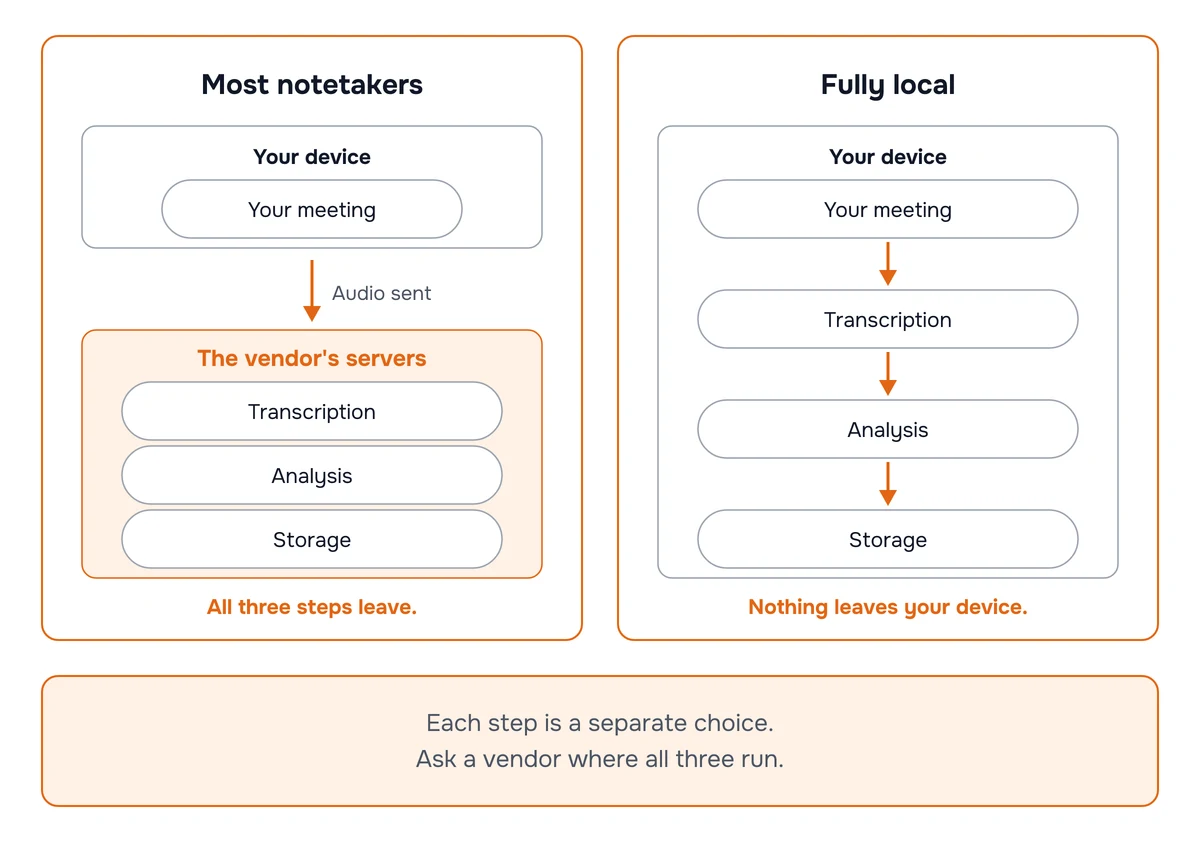
Apple’s and Google’s built-in recorders keep transcription, and some summaries, on the phone. Hedy can keep the whole pipeline on the device, live suggestions included, when you use a local speech engine and Local AI Processing and turn off Cloud Sync, iCloud audio sync, and recap emails. Keeping sensitive conversations on your device walks through each setting. Our guide to how private your AI notetaker is explains how to check any tool’s claims.
How do you get a good recording in a room?
Put the device in the middle. A phone flat on the table, between the people talking, beats a phone in front of you. In a long room, move it closer to whoever speaks least.
Keep it quiet. Café noise, air conditioning, and cutlery all make transcripts worse. If you can pick the table, pick the one away from the coffee machine.
Use a microphone for the far end of the room. For a workshop or a large table, a clip-on wireless microphone gives the far speakers a fair chance. Our wearables and wireless microphones guide explains which setups also capture the person across from you.
Start before the conversation does. People often say the most important thing in the first minute. Start the session while you sit down, not once the meeting feels official.
Say who’s there. Introductions at the start give speaker names something to work with, and they’re polite anyway.
Which AI note taker should you choose for in-person meetings?
- You want help while the conversation is happening: Hedy.
- You need the meeting to stay on your own hardware: Hedy, with Local AI Processing and Cloud Sync off.
- You want to replay exactly what was said: Otter.
- You record for hours, or need calls captured on a mobile phone: Plaud.
- You only need an occasional free transcript: Apple Notes and Voice Memos on iPhone, or Google Recorder on Pixel.
- You need data processed in Europe: Hedy (EU data residency for meeting data, chosen at signup) or Jamie.
- Your own typed notes are the point: Granola.
Frequently asked questions
What is the best AI note taker for in-person meetings?
It depends on what you need from the meeting. Hedy is the best pick if you want help while the conversation is happening, with speaker labels worked out on your own device. Otter suits people who want a searchable archive with audio playback. Plaud suits people who prefer a dedicated recorder. On an iPhone or a Pixel, the built-in recorder apps are a free starting point.
How do I use AI to take notes in a face-to-face meeting?
Open an AI note taker on your phone or laptop, start a session before the conversation begins, and put the device where it can hear everyone, usually the middle of the table. Tell the other people you’re using it. Afterward, check the transcript and summary before you rely on them.
Can AI transcribe a conversation in the room?
Yes. Apps such as Hedy, Otter, Jamie, and Granola, and the built-in recorders on iPhone and Pixel, transcribe what the device’s microphone hears. Accuracy depends on how close the device is to each speaker, room noise, and people talking over each other.
Does Otter work for in-person meetings?
Yes. Otter’s iPhone and Android apps record through the phone’s microphone and transcribe the conversation, with speaker labels and a live summary. The free plan caps each conversation at 30 minutes, and Pro raises that to 90 minutes.
Is there a free AI note taker for in-person meetings?
Yes. The built-in recorders on iPhone (Notes and Voice Memos) and Pixel (Google Recorder) transcribe for free. Hedy’s free plan covers 5 hours a month, including the first 30 minutes of Automatic Suggestions in each session. Otter’s free plan gives 300 minutes a month with a 30-minute cap per conversation, Jamie’s gives 10 notes a month, and Granola’s free plan shows your last 30 days of notes.
Can an AI note taker record a phone call on the same phone?
Usually not. iPhone and Android stop ordinary apps from capturing call audio. The exceptions are the phone’s own dialer (Call Recording on iPhone, Call Notes on recent Pixels), hardware that clips to the phone, such as Plaud Note, and apps that route the call through their own service. With Hedy, you can take an iPhone call on a Mac and Hedy captures both sides live.
Is there a free AI note taker for phone calls?
Yes, if your phone supports it. iPhone’s Call Recording (iOS 18.1 or later, not offered in the EU) saves the recording in Notes for free, with a transcript in supported languages, and recent Pixel phones have Call Notes in supported countries. Both announce the recording to everyone on the call.
Should I use an app or a dedicated AI recording device?
An app on the phone you already carry is enough for most meetings, and unlike the dedicated recorders here, an app can help during the conversation. A dedicated recorder such as Plaud makes sense when you record for hours at a time or need to capture calls on the phone itself, but it adds a device cost and shows no live transcript.
Do I need consent to use an AI note taker in a meeting?
In many places, yes, and it’s the right thing to do anyway. Some US states and many countries require everyone’s agreement before a private conversation is recorded, and an app on a phone gives the other person no visible sign that it’s running. Tell people at the start and ask if they’re comfortable.
More AI note taker comparisons
About the author
Julian Pscheid is the founder and CEO of Hedy AI, a real-time AI meeting coach used by tens of thousands of professionals worldwide. He writes about how AI is changing the way people prepare for, capture, and understand important conversations.