

Keep Sensitive Conversations on Your Device
Some conversations shouldn’t leave the device they were captured on. Most people assume Cloud Sync is the one switch that decides this. It isn’t. A session can leave by five independent paths, each governed by its own setting, and closing one does nothing about the other four.
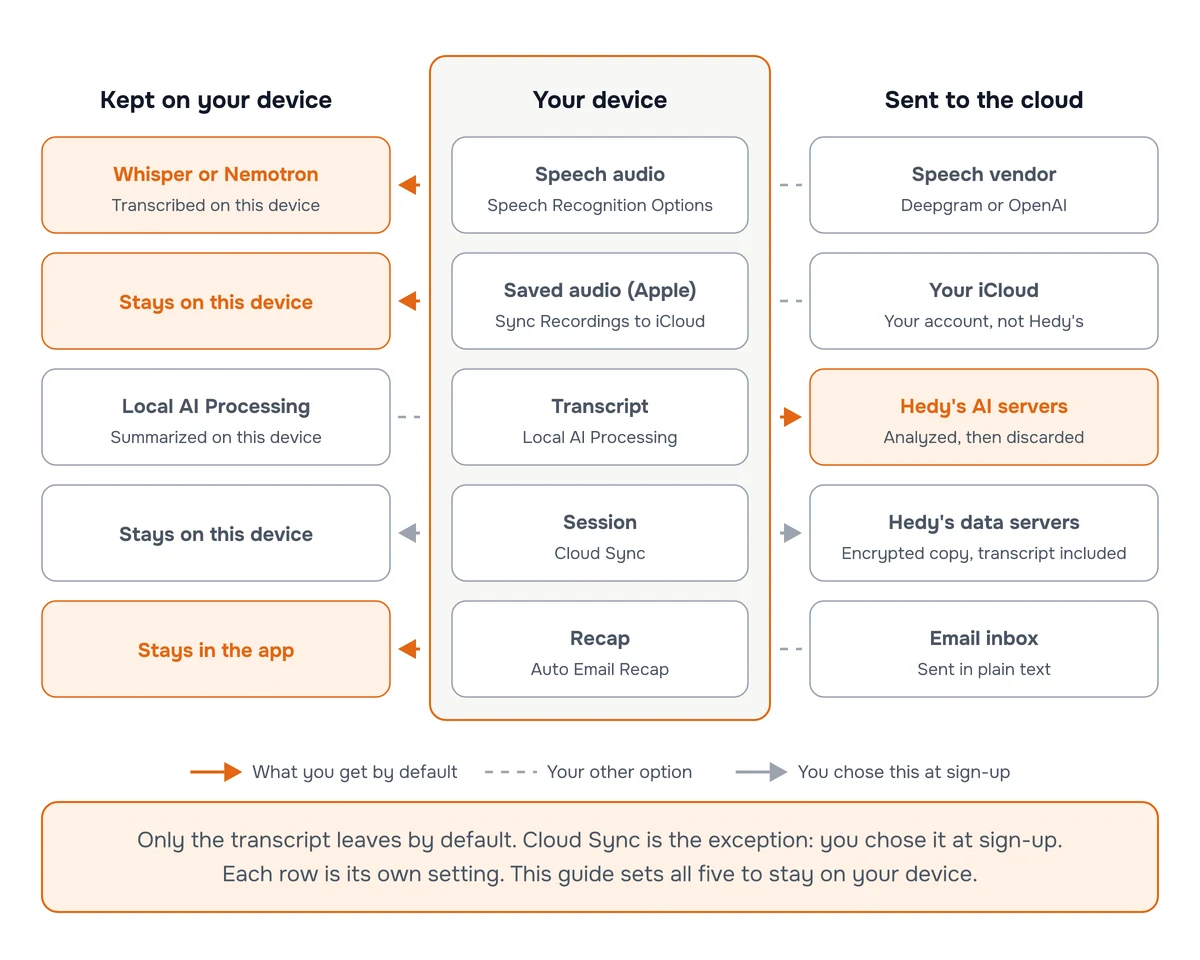
Most of these are already closed. Hedy transcribes on the device by default, and saved audio and email recaps are both opt-in. Cloud AI analysis is the one path open out of the box. Cloud Sync is the exception: it has no default at all, because Hedy asks you to choose when you create your account, so check which way you set it. The steps below cover all five, in the order the data actually flows.
Five settings to change
1. Choose a local speech recognition provider. Open Settings and scroll to Speech Recognition Options. Pick Whisper (local) or one of the Nemotron (local) options. Your audio is then transcribed on the device instead of going to Deepgram or OpenAI. Whisper is already the default, so this is usually a check rather than a change. See Speech Recognition Providers for the differences between them.
2. Leave audio sync off. On Apple devices, open Settings → Sessions → Save Session Audio and check that Sync Recordings to iCloud is off. When it’s on, your recordings are copied to your own iCloud account, which is off the capturing device even though it isn’t ours.
3. Choose Local AI. Go to Settings → Speech & AI → AI Processing, choose Local AI, and download a model from the list below it that fits your device. Summaries, notes, chat replies, and suggestions are then generated on the device rather than by our cloud AI. This needs an Apple Silicon Mac, a Windows PC with a Vulkan-capable GPU, an iPhone 15 Pro or later, or an M-series or A17 Pro iPad. Local AI Processing has the full requirements.
If your device can’t run local AI, choose Off in Settings → Speech & AI → AI Processing instead. You’ll get transcripts and nothing else: no summaries, highlights, notes, suggestions, or chat.
4. Turn Cloud Sync off. Go to Settings → Privacy & System → Privacy Preferences and turn Cloud Sync off. Your sessions stay on the device that captured them, and you won’t see them on your other devices or at web.hedy.ai.
5. Turn Auto Email Recap off. Go to Settings → Automation & Data and check that Auto Email Recap is off. It emails the recap once a session ends, which sends the content out of the app.
What still leaves your device
These settings keep conversations captured in the phone, tablet or desktop app on that device. A standalone Apple Watch session sends its audio to the paired iPhone for import, so use the phone or desktop app directly if audio must stay on the device that captures it. Three other things still travel:
-
Account information, usage data, and crash reports. These keep the app working. None of them carry transcript content or AI-generated output.
-
Model downloads. Local AI and Nemotron models come from our servers and contain none of your data.
-
Anything you share on purpose. Sharing a session uploads it. A public link puts the parts you selected on a page anyone with the address can open, so prefer an email invitation for confidential material, keep the expiry short, and revoke it when you’re done. Audio is never part of a share.
Before you rely on this
Set it up on every device you capture on. These are per-device settings. Local AI Processing also needs its own model download on each one.
Turning Cloud Sync off doesn’t reach back. Sessions that already synced stay on our servers until you delete them, which you do from the session menu on the device that captured them. See Data Management & Control.
A local session has no backup. With Cloud Sync off, deleting Hedy or its data deletes those sessions permanently.
Old share links stay active until you revoke them. Review them in Settings → Account.
These settings control where your data goes. They are not a compliance certification. If you work under a formal obligation, whether that’s a regulated industry, a client contract, or an employer policy, read the Professional Use Guidelines and check Hedy’s current compliance posture at trust.hedy.ai before deciding whether Hedy fits.