

Local AI Processing
Local AI Processing runs Hedy’s AI analysis entirely on your own device. Your transcripts stay on-device, and it works even when you’re offline.
It’s available on macOS (Apple Silicon), Windows (with a Vulkan-capable GPU), iPhone 15 Pro and later, iPads with an M-series or A17 Pro chip, and supported Android phones. With it on, the parts of Hedy that read your transcript and generate text — summaries, detailed notes, quick prompts, chat replies, in-session suggestions, and feedback — all run locally instead of on Hedy’s servers.
Local AI Processing is opt-in and off by default. Most people don’t need to switch it on: cloud AI is still faster and a step ahead in quality. It’s intended for people with privacy requirements that the cloud setup can’t meet, or who want Hedy to work fully offline.
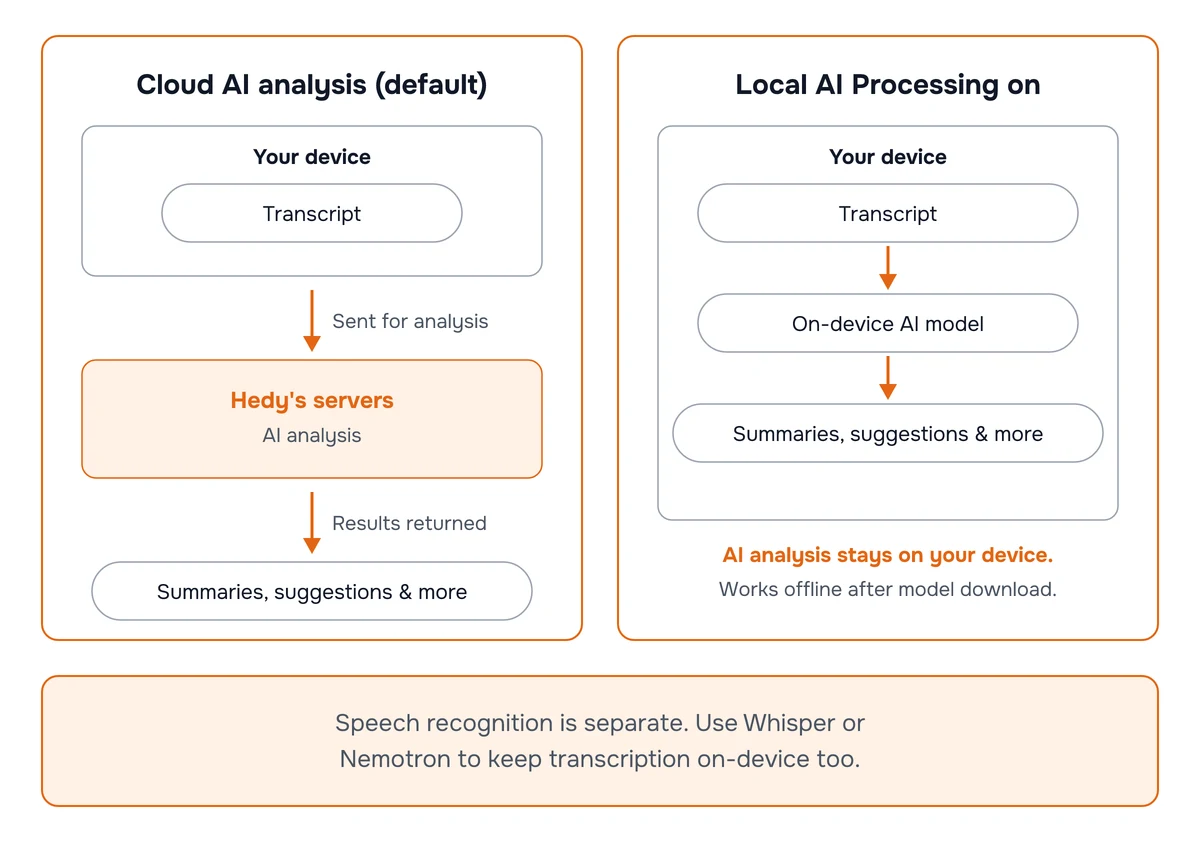
What Local AI Processing Does
-
Powers session summaries, detailed notes, quick prompts, chat replies, in-session suggestions, and feedback — all on your device.
-
Keeps your transcripts on-device. No conversation data leaves your device for AI analysis.
-
Works offline once a model is downloaded.
-
Coexists with cloud-based speech recognition (Deepgram, OpenAI) if you use those. Only the AI analysis step is local.
-
Doesn’t silently fall back to the cloud. If something fails locally, you’ll see an error rather than a quiet retry against our servers — you opted into local for a reason.
Requirements
Apple Silicon Macs (M1 or later). Apple Silicon shares one memory pool between CPU and GPU, so the model has to fit in your total system RAM alongside everything else you’re running. The smallest models work on most modern Macs. Mid-tier models (around 9 billion parameters) sit comfortably on 16 GB systems. The largest models can need around 25 GB of RAM to load, so 36 GB or more is realistic for those.
Windows PCs with an up-to-date Vulkan driver. What matters most here is your GPU’s VRAM, not system RAM. Larger models need a graphics card with enough VRAM to hold them. If a model is slightly too big for your card, Hedy spills some layers onto the CPU — that works but is noticeably slower, and the model picker tags those entries with a ”+ Slow” suffix.
iPhone 15 Pro and later, plus iPads with an M-series or A17 Pro chip. Restricted to the smallest models because of memory limits on phones and tablets. Compact models handle short summaries well, but their responses are noticeably more limited than what you’d get from a larger model on a Mac.
Android phones with a supported GPU and around 8 GB of memory or more. Like iPhone and iPad, Android is restricted to the smallest models. Two things to know before you count on it: phones with Imagination PowerVR graphics are not supported, because their graphics driver fails in a way that takes the GPU down with it; and there is no CPU fallback, so a phone without a usable GPU can’t run Local AI at all rather than running it slowly. Hedy checks your device and tells you which models fit.
On devices that can’t run on-device AI — Intel Macs, older iPhones and iPads, and Android phones that don’t meet the requirements above — the Local AI Processing card still appears in Settings → Speech & AI, but instead of a toggle it shows: “Local AI isn’t available on this device yet. We’re working on bringing on-device AI to more devices.” (The web app doesn’t show a Local AI section at all.) On a device without a usable GPU, the card explains that compatible graphics with up-to-date drivers are required.
The web app is on our roadmap but not supported yet. The constraints of running models inside a browser make a consistent experience difficult today.
You’ll also need free memory matched to the model you pick (Hedy shows a fit indicator on each one) and an initial model download. Model size ranges from roughly 2.5 GB to over 20 GB depending on which model you choose.
How to Enable Local AI Processing
-
Open Hedy and go to Settings → Speech & AI.
-
Scroll to the Local AI Processing section and turn it on.
-
Pick a model from the list that fits your device’s memory. Look for the “Great fit” label.
-
Wait for the model to finish downloading. You’ll see progress and size in GB.
-
Once downloaded, Local AI Processing is active. Start a session as usual.
Local AI Processing is configured per device. To use it on your Mac and your iPhone, enable it and download a model on each — the setting and model files don’t carry between devices.
Picking a Model
The model picker shows several models with a star rating based on their size:
-
★ (1 star) — Good for basic meeting summaries and short notes. May struggle with long meetings or nuanced follow-up questions. Parameter range: 2–5 billion.
-
★★ (2 stars) — Solid all-around. Handles meeting summaries, detailed notes, and chat well. Very long or highly technical conversations may be harder. Parameter range: 8–10 billion.
-
★★★ (3 stars) — Close to our cloud AI in quality. Handles long meetings, large topics, intricate notes, and complex follow-up questions reliably. Parameter range: 15+ billion.
Hedy automatically checks the memory available on your device and flags each model:
-
Great fit — recommended. Plenty of headroom.
-
Tight fit — works, but may be slow or unstable if you run many other apps.
-
Won’t fit — don’t pick this one.
On Windows, models that need to spill layers onto the CPU show a ”+ Slow” suffix so you know what you’re choosing.
If you’re unsure, start with the largest model that shows “Great fit” for your device. You can switch later. Models live in your app’s storage after download, and you can delete one anytime from the same screen to reclaim disk space.
Switching Between Local and Cloud AI
-
Turn Local AI Processing off to return to cloud-based analysis.
-
You don’t lose any sessions when switching. Existing sessions keep their current notes and summaries.
Privacy
When Local AI Processing is on, your transcripts and AI-generated content (summaries, notes, chat replies, suggestions, feedback) never leave your device for AI analysis. Model downloads come from Hedy’s servers but don’t contain any of your data.
What flows to our servers depends on whether Cloud Sync is also on:
-
Local AI on, Cloud Sync off. Nothing about your meetings goes to our servers unless you explicitly share a session. Audio recordings, transcripts, summaries, notes, chat replies, and suggestions all stay on the device. The one exception is saved audio on Apple devices, which leaves only if you switch on Sync Recordings to iCloud, and that copies the file to your own iCloud account rather than to us.
-
Local AI on, Cloud Sync on. AI processing still happens entirely on your device — your transcript and generated text are never sent for processing. Your session data still syncs (encrypted) to Hedy’s servers so you can access it across devices, the same way Cloud Sync always has.
In both cases, account information, usage data, and crash reports continue to flow through our servers so the app can function. None of those carry transcript content or AI-generated output.
For the strictest setup, combine Local AI Processing with Cloud Sync turned off, and leave Sync Recordings to iCloud off as well. Your conversations then exist only on the device that captured them, unless you explicitly share a session. Sharing uploads that session, and a public link puts the parts you selected on a page anyone with the address can open. Audio is never part of a share.
Speech recognition is a separate step. If you’re using a cloud provider like Deepgram or OpenAI for transcription, your audio still flows through that provider. To keep both steps local, pair Local AI Processing with on-device speech recognition like Whisper or Nemotron. See our Speech Recognition Providers guide.
Practical Tips
-
Turn off Automatic Suggestions for long local sessions. They keep the local model very busy throughout a session and can slow down everything else on your machine (and generate a lot of heat). Hedy prompts you about this when you first enable Local AI Processing.
-
Plug in your laptop or phone for long sessions. Continuous on-device inference drains batteries faster than you’d expect.
-
Pick a model that comfortably fits your hardware (RAM on Mac and iOS, VRAM on Windows). A “Tight fit” works, but leaves less headroom for everything else you’re doing.
Troubleshooting
Responses are slower than the cloud
That’s expected. A summary that feels instant in the cloud might take anywhere from 30 seconds to several minutes locally, depending on your hardware and which model you pick. Larger models are slower but more capable.
The model won’t download
-
Check your internet connection and available disk space.
-
Restart Hedy and try again.
-
Some models are several GB. Downloads can take a while on slower connections.
-
On Windows, antivirus software can interrupt large downloads or quarantine model files. See Windows Antivirus Blocking Hedy Download or Installation if that happens.
Responses are very slow or the app feels unresponsive
-
Check the model’s RAM/VRAM requirement versus what’s free on your device. A “Tight fit” model competing with other apps can run slowly.
-
Close memory-heavy apps you aren’t using (extra browser tabs, background apps).
-
Try a smaller model.
-
On Windows, confirm your GPU driver is up to date. See Fix Slow Transcription on Windows (GPU Settings) for driver guidance — the same tips apply to local AI.
“Local AI model not ready” when starting a session, importing, or merging
This means Local AI Processing is selected but no model is downloaded yet, so Hedy has no engine to generate AI output. Open Settings → Speech & AI to download a model, or switch back to cloud AI to continue right away. Hedy now surfaces this before the session starts instead of failing silently part-way through.
“Local AI lost access to your model”
Hedy can no longer reach a model you previously added — usually because the file was moved or removed outside the app. Open Settings → Speech & AI, remove that model, and add it again.
AI features say “not available”
-
Confirm the model finished downloading (check the Local AI Processing section in settings). A model whose download was interrupted no longer shows as “Downloaded” — re-download it if so.
-
Toggle Local AI Processing off and on again.
Feedback
Running AI entirely on your device is new, and it’s still early. Local models are smaller than cloud models, so answers may be less accurate or detailed, and on some systems you may run into instability or slow startup. Those tradeoffs will shrink as local AI matures, and we’ll keep extending support to more platforms as the technology allows.
Email support@hedy.ai with any feedback or issues.
Related: Cloud AI Analysis Privacy Control, Speech Recognition Providers.

