

Hedy Quick Prompts
Quick Prompts: Built-In and Custom
Quick prompts give you one-tap access to specialized AI insights during any session. Hedy includes built-in quick prompts tailored to each session type, and you can also create your own custom prompts.
Built-In Quick Prompts
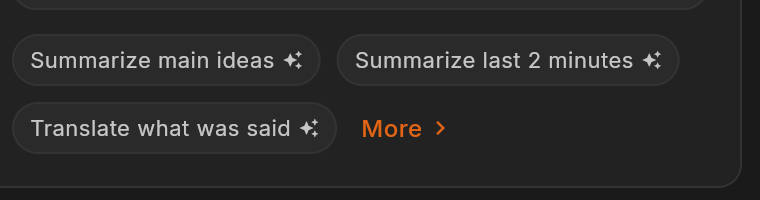
Every session type comes with its own set of built-in quick prompts designed for that specific context. For example, Business Meeting prompts focus on action items and strategic questions, while Lecture prompts focus on comprehension and study notes. When you switch session types, the available built-in prompts change automatically.
Use Hide prompt beside a built-in prompt to remove it from that session type’s list and quick chips. To bring it back, open Show hidden prompts (followed by the number hidden) and use Show prompt. You can also choose Undo in the Prompt hidden confirmation. This does not turn off automatic suggestions. The separate Custom prompts action manages prompts you created yourself; prompts generated for a custom session type are another group and do not use these hide controls.
For a complete list of built-in prompts for each session type, see our Quick Prompt Reference guides in the help center.
What Are Custom Quick Prompts?
Custom quick prompts are templates you create yourself to extract specific types of information during a meeting. These appear alongside the built-in prompts and work with any session type.
Quick Prompts at a Glance:
One-click access to specialized insights
Tailored to specific professional contexts
Save time and maintain focus
Instantly generate meaningful information
Industry-Specific Quick Prompt Examples
Construction Project Management
-
Site Progress Snapshot
- “Provide a comprehensive overview of the current construction site progress. Include completed tasks, critical path items still pending, safety compliance status, material delivery updates, and potential scheduling risks.”
-
Budget Tracking Quick Check
- “Generate a detailed financial overview of the current project status. Compare current spending against the projected budget.”
-
Subcontractor Performance Assessment
- “Conduct a comprehensive assessment of current subcontractor performance. Evaluate their timeliness in work completion, quality of deliverables, safety record, communication effectiveness, and identify specific areas for potential improvement.”
Tech Product Development
-
Sprint Performance Pulse
- “Provide a detailed analysis of the current sprint’s performance.”
Legal Consultation
-
Case Risk Assessment
- “Conduct a comprehensive legal risk assessment for the current case. Identify and prioritize key legal risks, develop potential mitigation strategies, highlight critical upcoming deadlines, create a preliminary recommendation framework, and outline specific areas requiring further investigation or deeper legal analysis.”
Pro Tip: The most effective quick prompts are specific, actionable, and tailored to your exact professional needs.
Creating Powerful Quick Prompts
Key Considerations:
-
Be Specific: Focus on extracting precise, actionable information
-
Structure Matters: Define clear categories of insights
-
Adapt to Your Workflow: Customize prompts to your unique professional context
-
Keep It Concise: Aim for clarity and immediacy
Pairing prompts with a custom session context gives Hedy more background to draw on when answering them.
How to Use Quick Prompts
-
Create your prompt in Settings > Personalization > Custom Quick Prompts
-
Save it to your quick prompt library
-
Activate via the quick prompts button during any meeting (see “Where to find Quick Prompts” below for desktop vs. mobile)
-
Instantly generate targeted insights
Where to find Quick Prompts (Desktop vs. Mobile)
Quick Prompts are available on both desktop and mobile, but they appear in different places — this is one of the most common “I can’t find the magic wand” questions we get.
-
Desktop (Mac and Windows): Quick Prompt buttons appear below the chat input during an active session. There is no magic-wand icon on desktop. Scroll the chat panel if you don’t see them right away.
-
Mobile (iOS and Android): Tap the magic-wand icon next to the chat input to open the Quick Prompts list. This keeps the mobile screen uncluttered when you’re not using them.
In both cases, tapping or clicking a quick prompt sends it to Hedy immediately — you do not need to type anything first.
Quick Prompts vs. Chat Prompts
While quick prompts are pre-configured for instant insights, chat prompts remain completely flexible. Think of quick prompts as your specialized toolkit, and chat prompts as your free-form conversation companion. Hedy can also surface automatic suggestions during a session without you tapping anything.
Privacy First: Your quick prompts are completely private and used only to enhance your personal Hedy experience.

