

Managing Custom Contexts
Custom contexts help Hedy better understand the specific situations, roles, or knowledge areas relevant to your conversations. With Hedy’s context management feature, you can create and manage multiple context profiles for different scenarios.
What is a Session Context?
A session context is background information you provide to Hedy before starting a session. This helps Hedy understand your role, goals, or specific information relevant to the conversation. Hedy also draws on this background when generating automatic suggestions during a session. With custom contexts, you can save multiple different contexts and easily switch between them.
A context shapes what Hedy knows about a session. It doesn’t file your sessions or keep them apart in the list. To separate work and personal sessions, see Managing Your Hedy Sessions.
Tip: You can also create and update contexts from a connected AI assistant like Claude. Ask it to research a client and push the background into Hedy before your meeting, then review what happened afterward. See Connect Hedy with AI Assistants Using MCP for the full workflow.
Session Context vs. Topic Context
Hedy has two layers of context, and they answer different questions:
-
Session context covers what stays true about you no matter who the conversation is with: your role, your resume, what you sell. Save it once as a custom context and reuse it everywhere.
-
Topic Context is attached to a topic and applies automatically to every session inside it. It carries what is specific to one engagement: a client, a deal, a job description, a course.
When a session belongs to a topic, Hedy uses both layers together. The rule of thumb: if you would end up copying the same information into several different topics, it belongs in the session context instead.
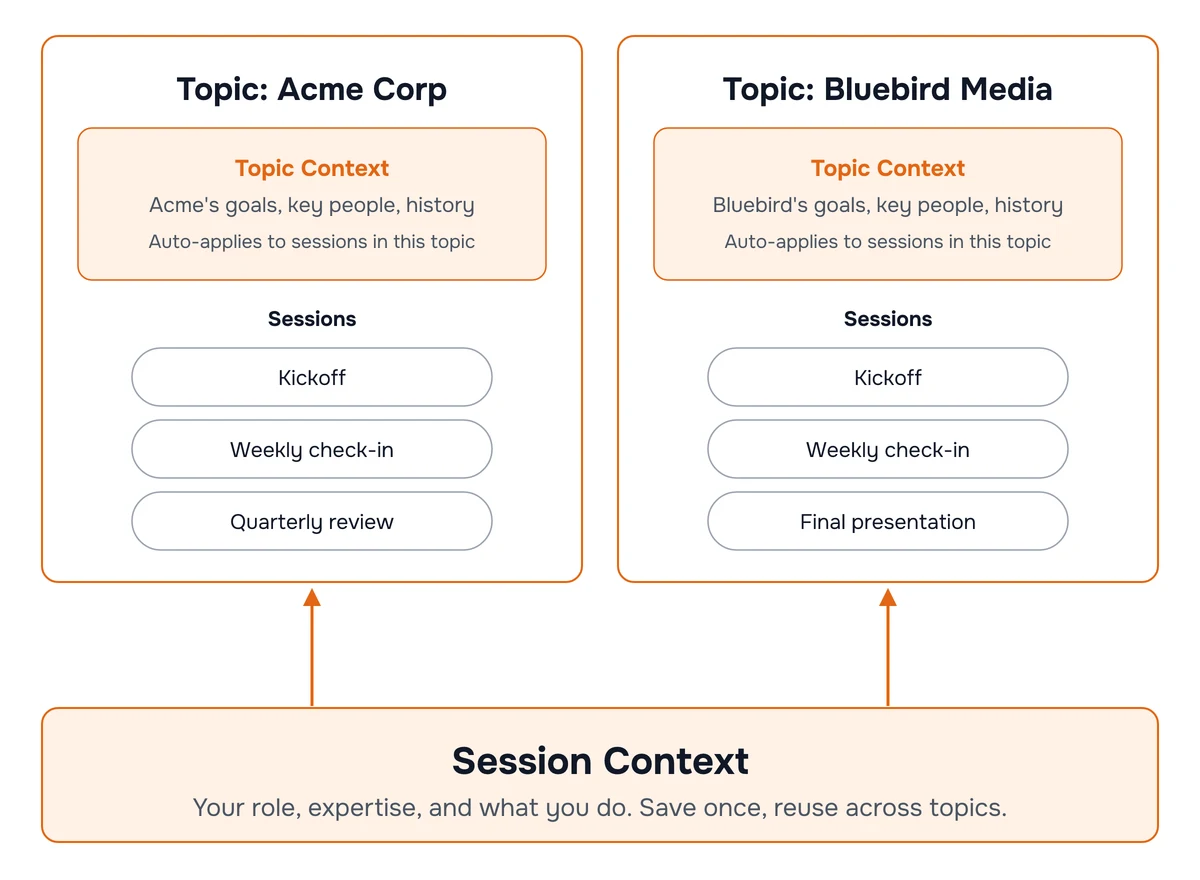
Two worked examples of this split: job interviews (resume in the session context, each company’s job description in its topic) and sales calls (what you sell in the session context, each deal in its topic).
Notes: Context for One Conversation
Both layers above are saved and reused. Sometimes you only need to tell Hedy something about the conversation in front of you: an agenda someone emailed over that morning, a detail carried across from the previous call, a correction to a name Hedy misheard. That belongs in the session’s notes rather than in a saved context.
Open the Notes tab on a session and start typing. You can do it before the conversation begins, while it is running, or afterwards. Hedy reads your notes alongside the transcript, so they shape the automatic suggestions you get during the session as well as the recap and detailed notes at the end. Nothing is added to a saved profile, so there is nothing to tidy up afterwards. Session Notes covers the editor itself.
So the three layers divide up roughly like this:
-
Session context: what is true of you in every conversation
-
Topic context: what is true of one client, deal, course or engagement
-
Notes: what is true of this one conversation
One thing to avoid: pasting long background into the chat with Hedy once a session is running. Chat is there for asking questions in the moment, and everything you type into it is carried along for the rest of the session. A large block of pasted text can crowd out the room Hedy needs to keep generating suggestions.
Describing the People Involved
If the same people appear in your conversations, tell Hedy who they are. Otherwise Hedy has to infer relationships from what it hears, and it can get them backwards. A common example: someone capturing their mother’s medical appointments finds Hedy describing the mother as the daughter.
Write one plain sentence per person. Give the name and say how that person relates to you. Include the nicknames people actually use out loud, since that is what Hedy hears.
Family Context Example:
“I capture doctor appointments and family meetings for my mother, Barbara Miller, who is 78. I am her son and one of her caregivers. My sister, Emily Miller, joins most appointments and handles the insurance paperwork. My wife, Dana, attends when I cannot. When someone says ‘Mom’ or ‘Grandma,’ that means Barbara, who is the patient.”
Prose works better here than a table or a list of labels. Hedy reads the context as text, so state each relationship rather than implying it through formatting.
Which layer this belongs in follows the same rule as the rest of your context. People who turn up across many different conversations, like family members or your own team, go in the session context. People tied to a single engagement, such as a client’s staff or a hiring panel, go in that engagement’s Topic Context.
Creating a New Context
How to Create a Custom Context
-
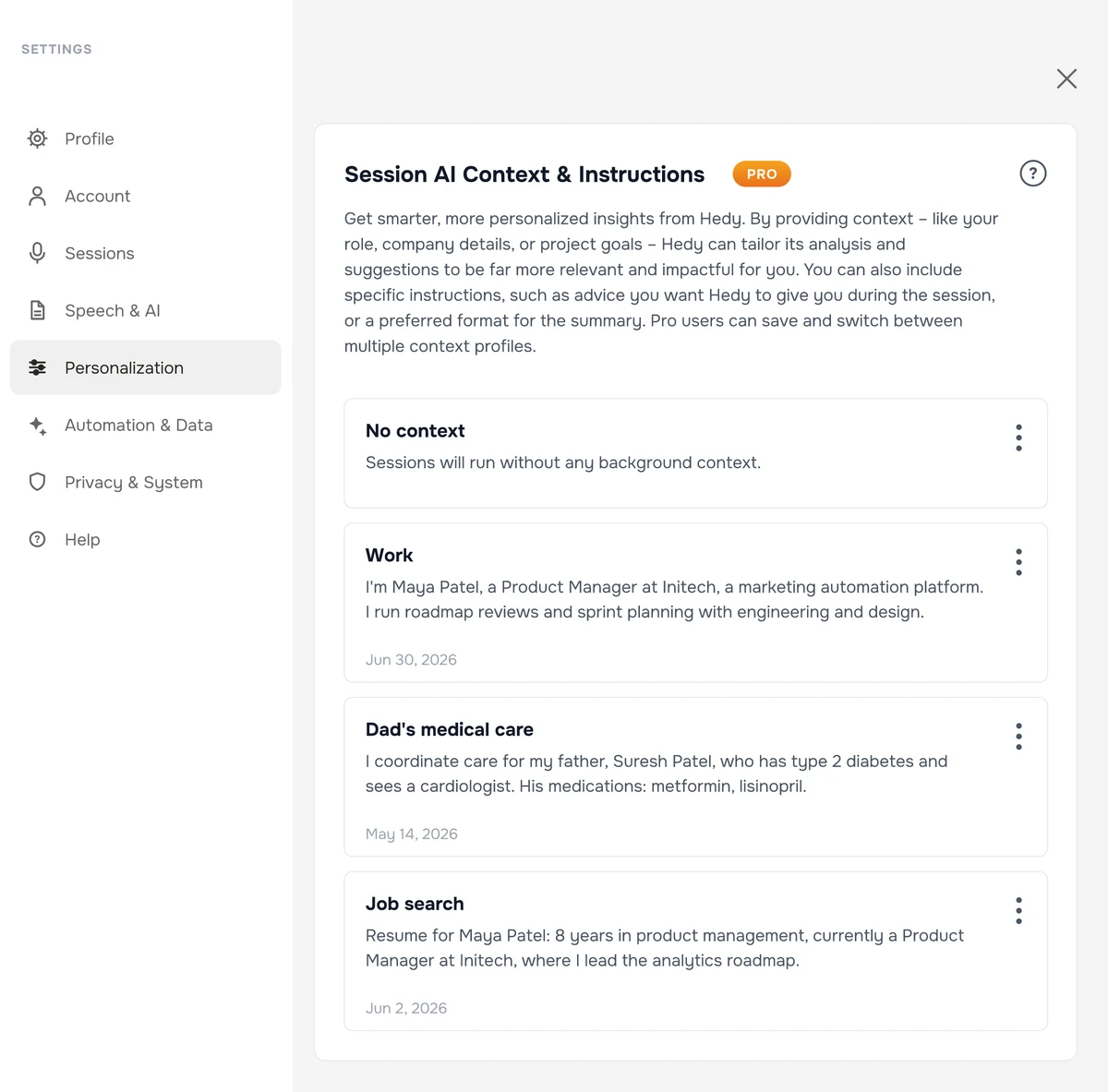
Open Settings and go to the Personalization tab
-
Find the Session AI Context & Instructions section
-
Tap the Add Context button
-
Enter a descriptive Context Title (e.g., “Product Manager Role” or “Client Meeting”)
-
In the Context Content field, provide relevant information:
- Your role and responsibilities
- Background knowledge or expertise
- Specific goals for conversations
- Any other relevant information
-
Optionally, toggle Set as Default Context to make this your primary context that will be selected when the app starts
-
Tap Save to create your new context
Be specific but concise in your context descriptions. Focus on information that will help Hedy provide more relevant insights during conversations. There is a 20,000 character limit for context content.
Managing Your Contexts
Viewing Your Contexts
All your saved contexts appear as cards in the Session AI Context & Instructions section. Each card shows:
-
Context title
-
Preview of context content
-
Last updated date
-
Status indicators (Default, Selected)
Editing a Context
-
Find the context you want to modify
-
Tap the menu (⋮) on the right side of the context card
-
Select Edit from the dropdown menu
-
Make your changes to the title or content
-
Tap Save to update the context
Setting a Default Context
-
Find the context you want to set as default
-
Tap the menu (⋮) on the right side of the context card
-
Select Set as Default Context
-
This context will now be automatically selected for new sessions
Deleting a Context
-
Find the context you want to remove
-
Tap the menu (⋮) on the right side of the context card
-
Select Delete
-
Confirm deletion when prompted
Using Contexts in Sessions
Selecting a Context When Starting a Session
-
Tap the orange glasses button to start a new session
-
In the session startup dialog, look for the Session Context dropdown
-
Select your preferred context from the list
-
If you don’t want to use any context, select No Context. Hedy will start the session without applying any background context, which is useful for quick scratch recordings or conversations where no prior setup applies.
-
Tap Start Session to begin with your selected context
The same startup dialog is where you choose a session type, which sets the kind of conversation Hedy expects.
Switching Between Contexts
-
You can select a different context each time you start a new session
-
Your previously selected context will be remembered for future sessions
Context Best Practices
Effective Context Examples
Job Role Context Example:
“I am a Product Manager at Initech that provides marketing automation tools. I often lead cross-functional meetings with engineering, design, and marketing teams. I need to coordinate product roadmaps, gather requirements, and communicate technical concepts to non-technical stakeholders.”
Client Meeting Context Example:
“I’m a Business Development specialist at Initech. I’m preparing to meet with a potential healthcare client, ACME Solutions, who is interested in our data security solutions. They have concerns about compliance and scalability. Our software solutions are called SecurSafe and SafeLock.”
Candidate Interview Context Example:
“I’m interviewing candidates for the Customer Service representative role at REI. Here is the job description:
[add job description]“
Tips for Creating Effective Contexts
-
Be specific about your role: Clearly state your position and responsibilities
-
Name the people who recur: Say who takes part and how they relate to you, so Hedy does not mix them up
-
Include relevant expertise: Mention knowledge areas you want Hedy to consider
-
State your objectives: Explain what you hope to achieve in conversations
-
Describe your products or services: Outline common products that might come up in the meeting
-
Keep it focused: Avoid unnecessary details that won’t impact Hedy’s assistance
-
Update regularly: Revise contexts as your role or objectives change
-
Provide a vocabulary: Include uncommon names of people, companies, and products so Hedy knows their spelling. For transcription spelling fixes, the custom vocabulary guide covers a dedicated feature
Managing Contexts Across Devices
Your contexts will automatically synchronize across all your devices. This ensures you have access to the same contexts whether you’re using Hedy on your phone, tablet, or through the web interface.

