

Setting Up Your First Hedy Session
Preparing for Your Hedy Session
A successful Hedy session starts with careful preparation. This guide will walk you through selecting languages, positioning your device, and creating the ideal environment for capturing your conversations.
Choosing Your Languages
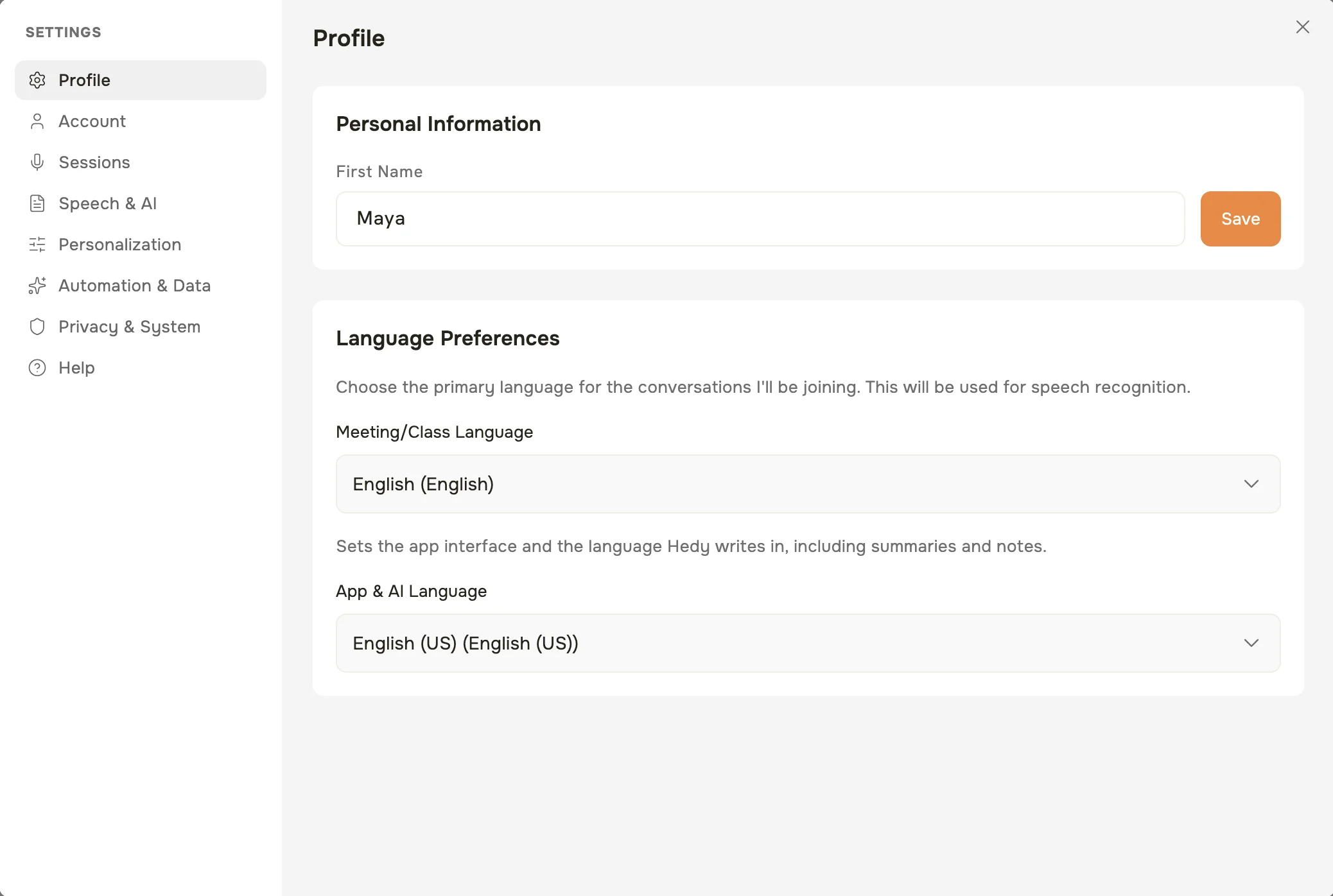
Hedy supports two key language settings to personalize your experience:
-
App & AI Language
-
Sets the app interface and the language Hedy writes in, including summaries and notes
-
Determines the language of insights, recaps, and chat interactions
-
Choose from 50 supported languages
-
Can be different from your meeting language
-
-
Meeting/Class Language
-
The primary language of the conversation Hedy will transcribe
-
Used for speech recognition and real-time transcription
-
Currently supports multiple languages (with varying levels of accuracy)
-
You’ll find both under Settings → Profile → Language Preferences.
To shorten the meeting-language list, open Customize list… in the picker and uncheck languages you do not use. Open it again and check a language to bring it back. Your selected/default language stays visible. This changes the session-language picker, not the App & AI Language choices or the languages a speech engine supports.
Virtual Meeting Audio Setup
How Hedy captures virtual meeting audio depends on which device you use:
Desktop (macOS and Windows)
Hedy captures system audio directly on your computer. This means it can hear everything from Zoom, Teams, Google Meet, and any other meeting app, even if you are using headphones, AirPods, or Bluetooth audio. No extra setup is needed.
-
Open the Hedy desktop app on your Mac or PC
-
Start a session
-
Join your virtual meeting as usual
-
Hedy will automatically capture the meeting audio
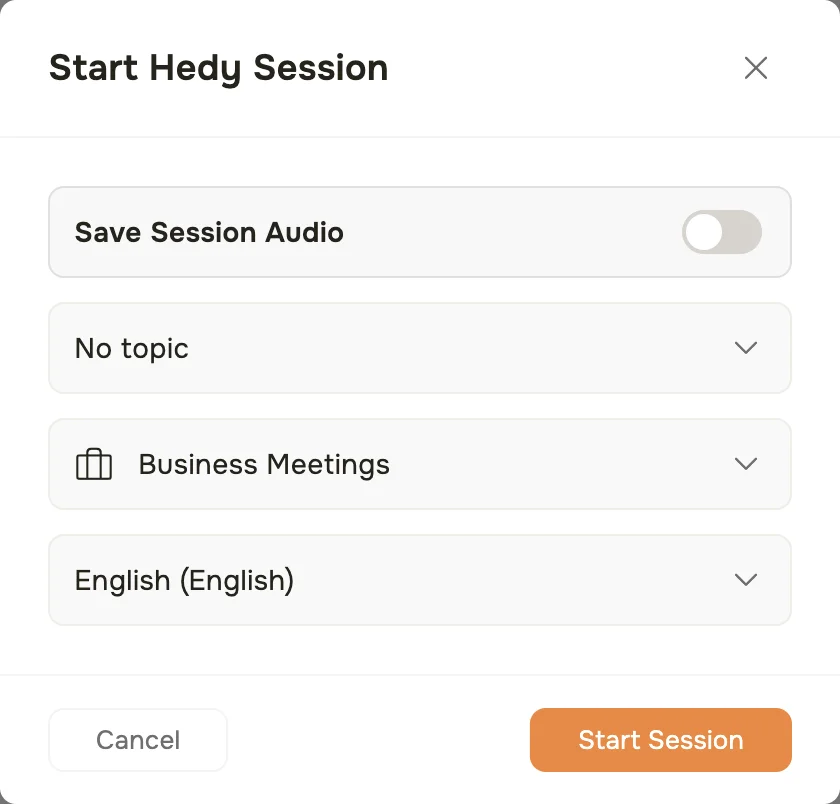
When you click Start Session, Hedy asks for a few details before it begins: whether to save the session audio, an optional topic, the session type, and the meeting language.
Pro tip: The desktop app is the easiest way to use Hedy for virtual meetings. It works with any audio output (speakers, headphones, Bluetooth) and captures both sides of the conversation.
Mobile (iOS and Android)
On mobile devices, Hedy uses your device’s microphone. It cannot directly access audio from other apps on the same phone or tablet. This is a restriction enforced by iOS and Android, not a Hedy limitation.
-
If you are using headphones on the meeting device: Hedy will not be able to hear the other participants.
-
If you are using speakers on the meeting device: Place your phone running Hedy near the speakers.
-
Best approach: Use a separate device for Hedy (e.g., your phone) and place it near the speakers of the device hosting the meeting (e.g., your computer).
Phone calls: Hedy cannot listen to phone calls on the same device. iOS and Android prevent any app from accessing call audio. To use Hedy during a phone call, put the call on speaker and use a second device running Hedy placed nearby, or take the call on your computer using the desktop app instead.
Device Positioning: Physical Meetings
Optimal audio capture is crucial for accurate transcription:
-
Place your device 3-6 feet from the primary conversation area
-
Avoid placing near loud devices or high-traffic areas
-
Ensure minimal background noise
-
Position device facing the primary speakers
Avoid these common mistakes:
Placing device too far from speakers
Covering the microphone
Putting device near air conditioners or fans
Leaving device in a pocket or bag
Virtual Meeting Setups
For online meetings, the desktop app (macOS or Windows) is the recommended approach. It captures system audio directly, so it works with any meeting platform and any audio output (speakers, headphones, or Bluetooth).
If Hedy runs on a different device from the meeting instead (your phone, or a second computer such as a personal laptop next to your work laptop), it listens through that device’s microphone:
-
Play meeting audio through speakers (not headphones) on the meeting device
-
Place the device running Hedy near the speakers
-
Ensure volume is at a moderate, consistent level
You can also view and interact with your sessions from any browser at web.hedy.ai.
Best Practices for Meeting Environments
-
Quiet Spaces
-
Choose rooms with minimal background noise
-
Close doors and windows during recordings
-
Inform participants about the recording
-
-
Technology Preparation
-
Fully charge your device
-
Close battery-draining apps
-
Connect to stable Wi-Fi or cellular data
-
-
Privacy Considerations
-
Inform meeting participants about Hedy
-
Ensure consent for recording
-
Review and delete sensitive sessions as needed
-
Before Your First Session Checklist:
✓ Choose chat and meeting languages
✓ Test device positioning
✓ Ensure participant consent
✓ Have a backup recording method if needed
Troubleshooting Common Setup Issues
-
Low Audio Quality:
-
Check device microphone permissions
-
Move closer to speakers
-
Reduce background noise
-
-
Language Recognition Problems:
-
Verify language settings
-
Speak clearly and at a moderate pace
-
Consider using English for most accurate results
-
Need personalized help? Our support team is available to assist you with session setup and optimization. Contact us through the in-app support chat or email support@hedy.bot.
Next Steps
Now that you’re prepared, you’re ready to start your first Hedy session! When you start, pick a session type that matches your conversation. You can also add a custom context so Hedy knows the background going in. Remember, practice makes perfect. Your first few sessions will help you understand how to get the most out of Hedy.
Tip for New Users: Start with a short, low-stakes meeting to get comfortable with Hedy’s features and capabilities.

