

Share Sessions and Topics
What is Sharing in Hedy?
Pro users can share individual sessions or entire topics (folders) with other people. There are three ways to do it, and they differ in who can open what you send.
-
Email invitation: the person you name gets an email. They sign in to a free Hedy account, and the content appears in their own session list, read-only.
-
Invite link: a single-use link you can send however you like. The first person to open it and sign in gets the same read-only access.
-
Public link: a web page that anyone with the address can open, with no Hedy account and no sign-in. You choose what the page shows and when it expires.
Audio is not part of any share: your recordings never reach Hedy’s servers, so Hedy has no audio to share. For sharing a single moment instead of a whole session, you can also share a Hedy highlight.
Getting Started with Sharing
-
Ensure you have a Pro subscription (required for sharing)
-
Navigate to the session or topic you want to share
-
Tap the share button
-
Choose your method: Email, Invite link, or Public link
-
Send or copy the link to share
Note: You don’t need to enable full cloud sync to share sessions. See “Sharing Local Sessions” below for details.
How Sharing Works
Email invitations and invite links both work the same way underneath:
-
A Hedy Account Is Required: Whoever you invite needs to sign in to Hedy to open the link. A free account is enough, they do not need a paid plan. If you want to send something to a person who has no Hedy account, use a public link instead.
-
Email Invitations: Enter recipient email addresses to send invitations. They’ll receive an email with a secure single-use link.
-
Single-Use Links: Generate a unique link that expires after one use or 7 days, whichever comes first.
-
Read-Only Access: Recipients can view but cannot edit your shared content.
Sharing a Session
-
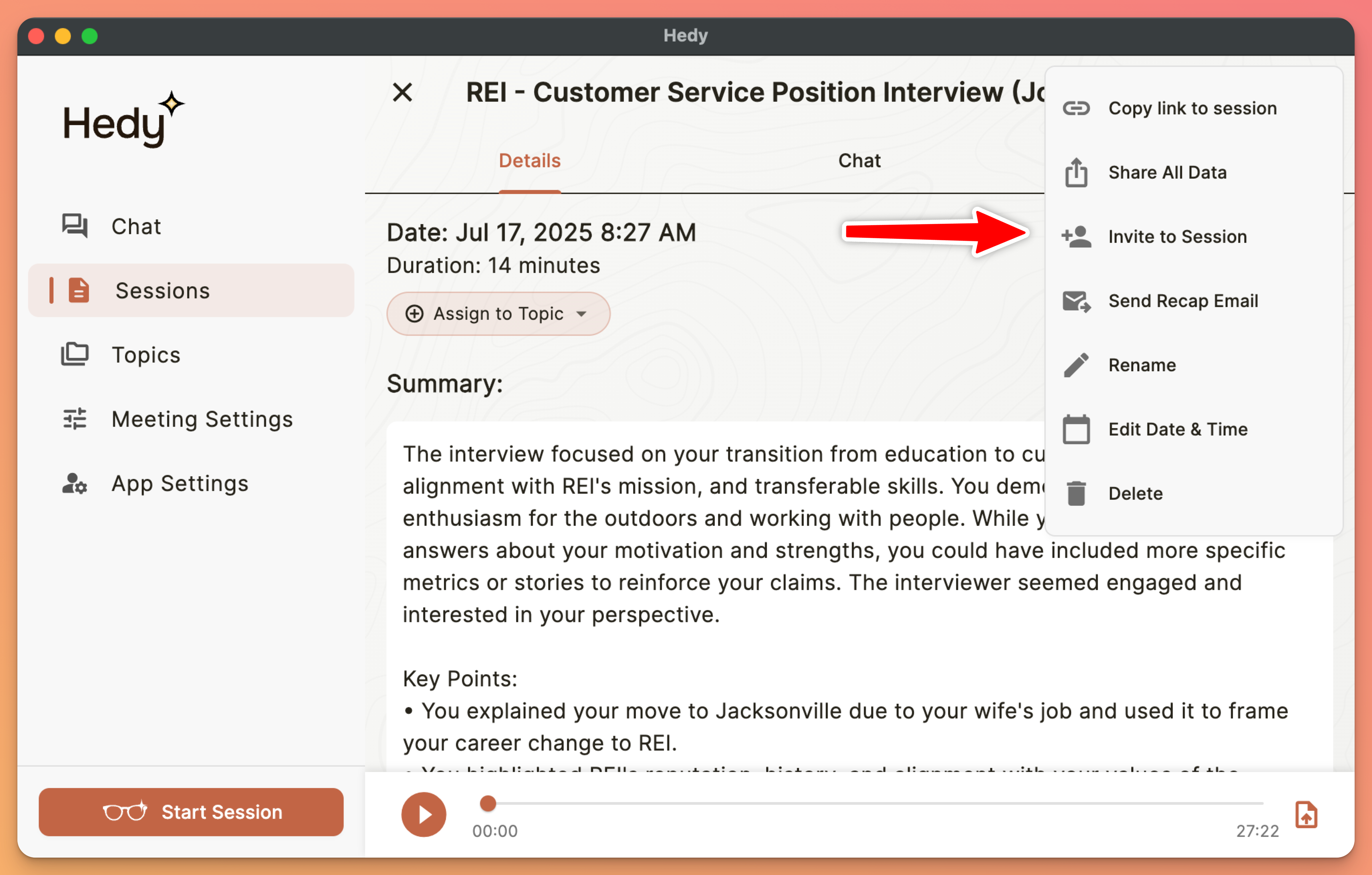
Open the session you want to share
-
Tap “Invite to Session” in the triple dot menu
-
In the share dialog, choose your method:
-
Email: Toggle to email mode and enter recipient addresses
-
Link: Toggle to link mode to generate a copyable link
-
-
For email: Tap “Send”
-
For link: Tap “Copy Link” to copy to clipboard
Sharing a Topic (Folder)
-
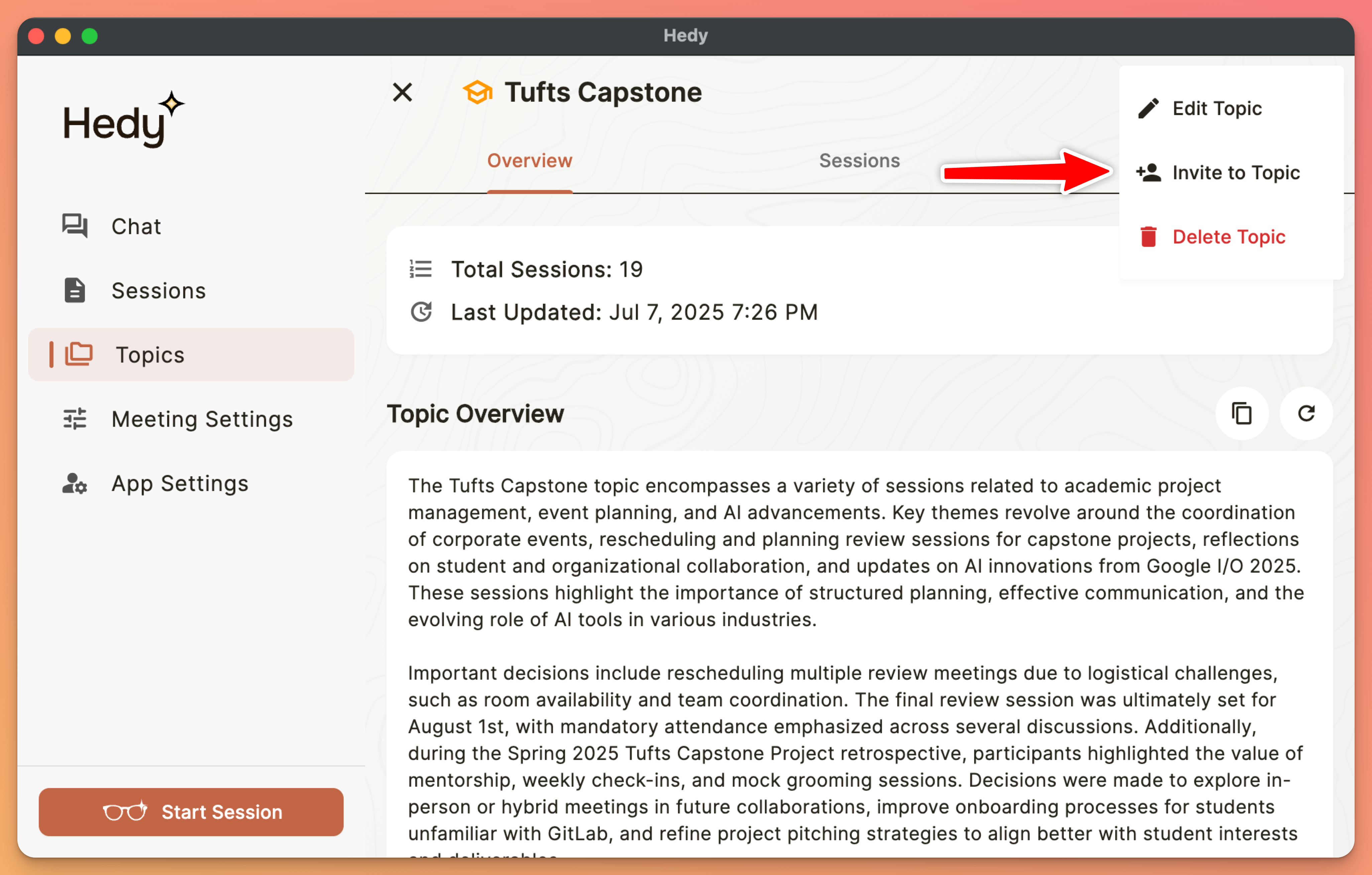
Navigate to your Topics view
-
Open the topic you want to share
-
Tap “Invite to Session” in the triple dot menu
-
Follow the same process as sharing a session
-
All current and future sessions in this topic will be accessible to recipients
Note: When you share a topic, recipients get access to all sessions within it, including any new sessions you add later to that topic.
Sharing a Session With a Public Link
A public link opens the session as a web page. Anyone who has the link can open it in a browser, with no Hedy account and no sign-in. Public links work for sessions, not topics.
-
Open the session you want to share
-
Tap “Invite to Session” in the triple dot menu
-
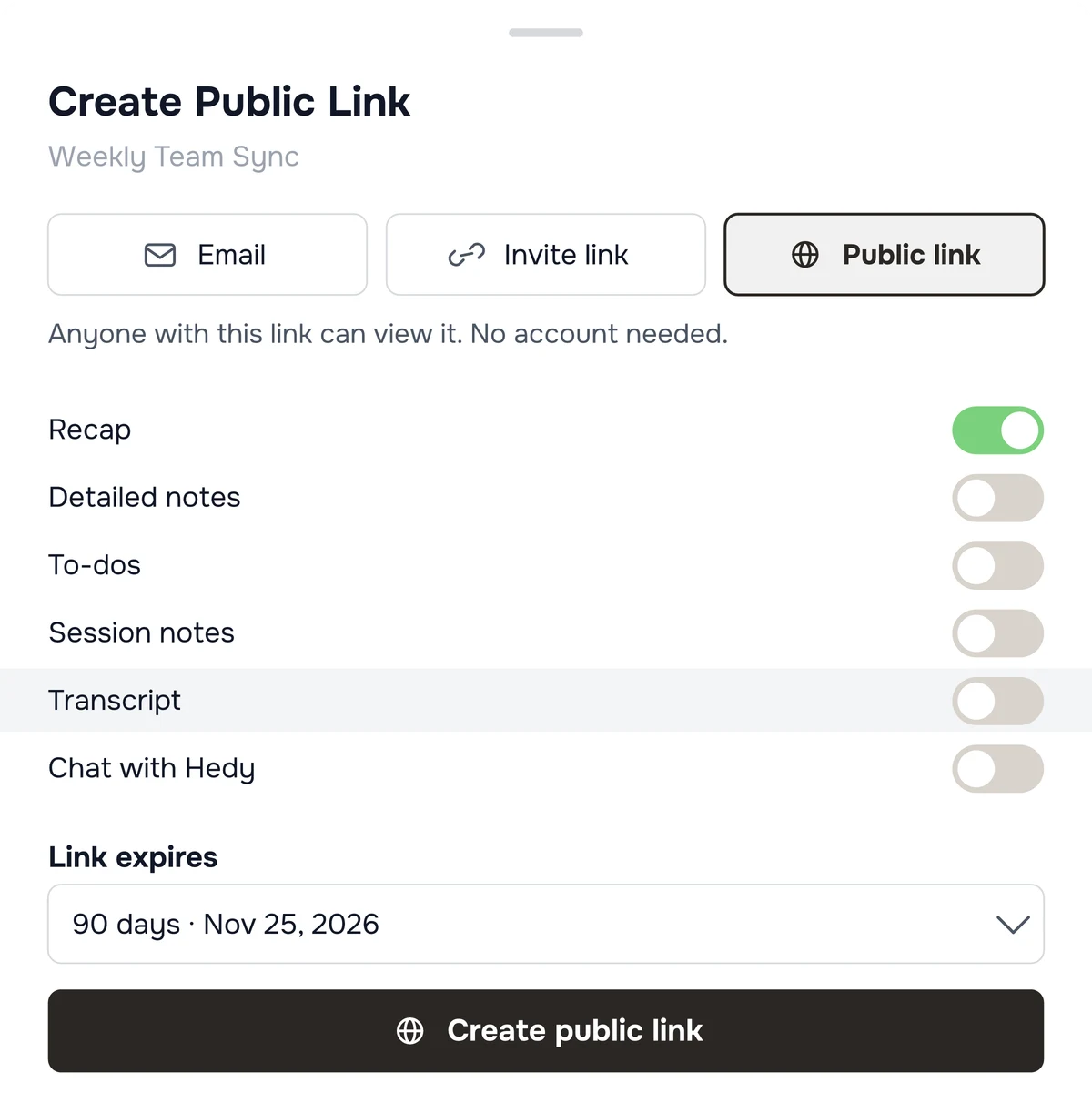
Choose the Public link tab
-
Select what the page should show
-
Choose when the link expires
-
Tap “Create public link”
On Mac and Windows the link is copied to your clipboard as soon as it is created. On iPhone and Android, tap “Copy public link”.
Public links are unlisted, not private. Search engines are told not to index them and the address contains a long random code, so nobody will stumble across one. But anyone you send it to can forward it to anyone else.
Choosing what the page shows
Six things can appear, and you pick them when you create the link:
-
Recap: the short summary of the session. Included by default
-
Detailed notes: the longer write-up, if the session has one
-
To-dos: action items from the session
-
Session notes: notes you typed yourself
-
Transcript: the full text of what was said, with speaker names
-
Chat with Hedy: your questions and Hedy’s answers about this session
Your Hedy display name is always shown, along with the session title, date, and length. Audio is never included. The session needs a recap before you can create a link that includes one.
Think about the transcript before you include it. It contains what other people said, word for word. Only publish it if you have their permission.
What a link shows is fixed when you create it. That is what stops someone editing the address to see more than you meant to share. To change it, revoke the link and create a new one, then send the new address to anyone who still needs it.
Expiry and revoking
Pick 7 days, 30 days, 90 days, or never. The default is 90 days. After a link expires it stops working, and the session itself is untouched.
To revoke, open the session’s share dialog and tap “Revoke link”, or use Settings → Account. The page stops working straight away. Revoking stops anyone new from opening it, but it cannot reach a copy someone already saved or forwarded.
Under Settings → Account, each active public link shows how many times its page has been opened and the date it was last viewed. Hedy counts views but does not record who viewed the page.
Public link or invite?
Use an invite when access should belong to a particular person. They sign in to their own Hedy account, the content appears in their session list, and you can revoke it later.
Use a public link when the person should not have to create an account, or when you do not know in advance who will read it. Sending a recap to a client, a family member, or a group is what this is for.
For anything confidential, regulated, or covered by an agreement, use an invite. A public link cannot check who is reading.
Sharing Local Sessions (Without Cloud Sync)
You can share individual sessions even if you don’t have full cloud sync enabled. This feature allows you to keep your data local while selectively sharing specific sessions when needed.
-
Open the local session you want to share
-
Tap “Invite to Session” in the triple dot menu
-
Hedy will upload just that session to the cloud for sharing
-
The session remains available for sharing while your other sessions stay local
This is perfect for users who prefer to keep their data private but occasionally need to share a specific meeting with colleagues.
Managing Shared Content
Access the Sharing section to control all your shares:
-
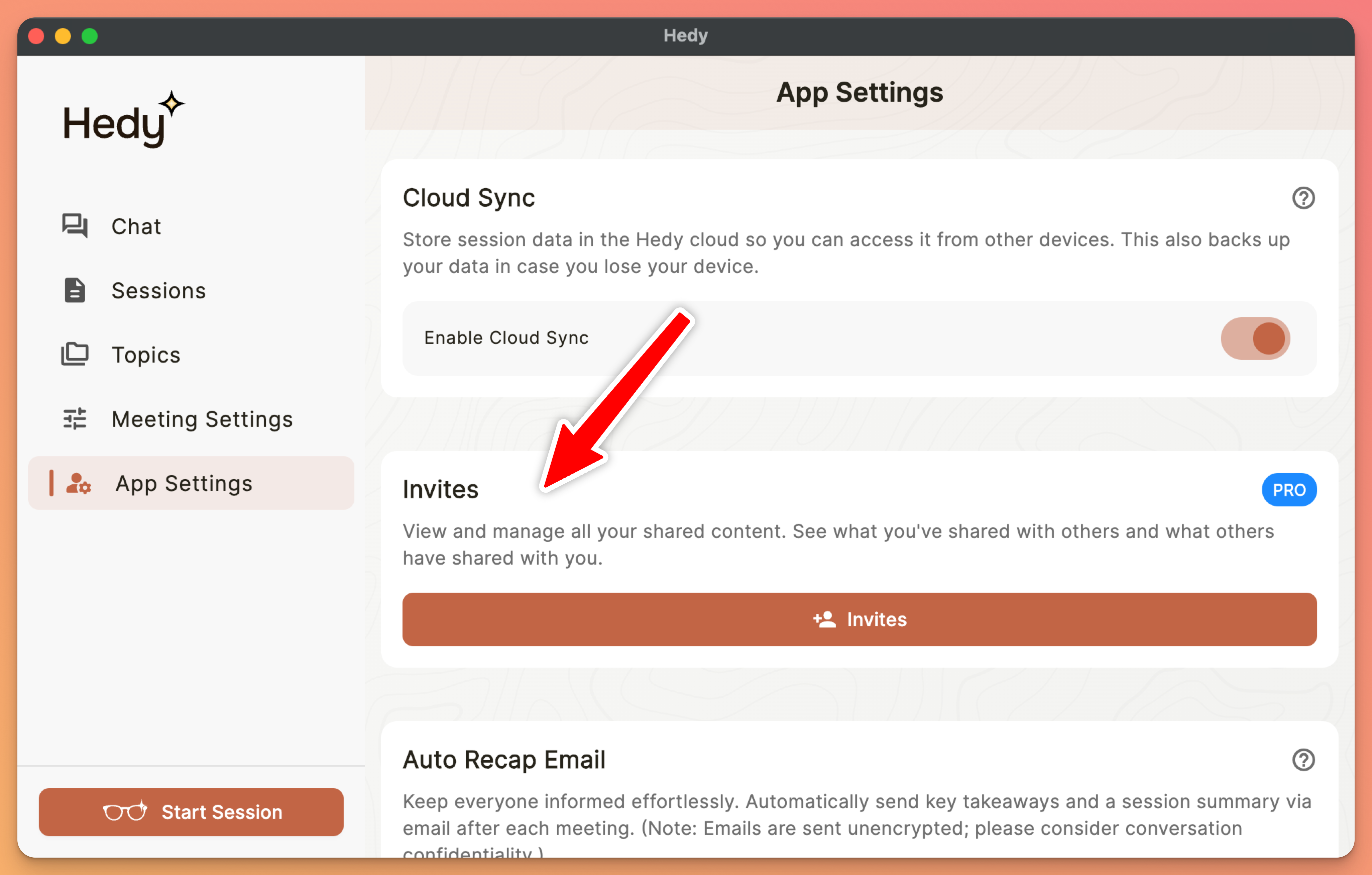
Open Settings and go to the Account tab, then scroll to the Sharing section
-
View three tabs:
-
Shared by Me: Content you’ve shared with others
-
Shared with Me: Content others have shared with you
-
Links: Status of the links you have generated. Public links appear here too, marked “Public link”
-
-
To revoke access: Find the share and tap “Revoke”
-
Monitor link status: See if links are used, expired, or active
Viewing Content Shared With You
-
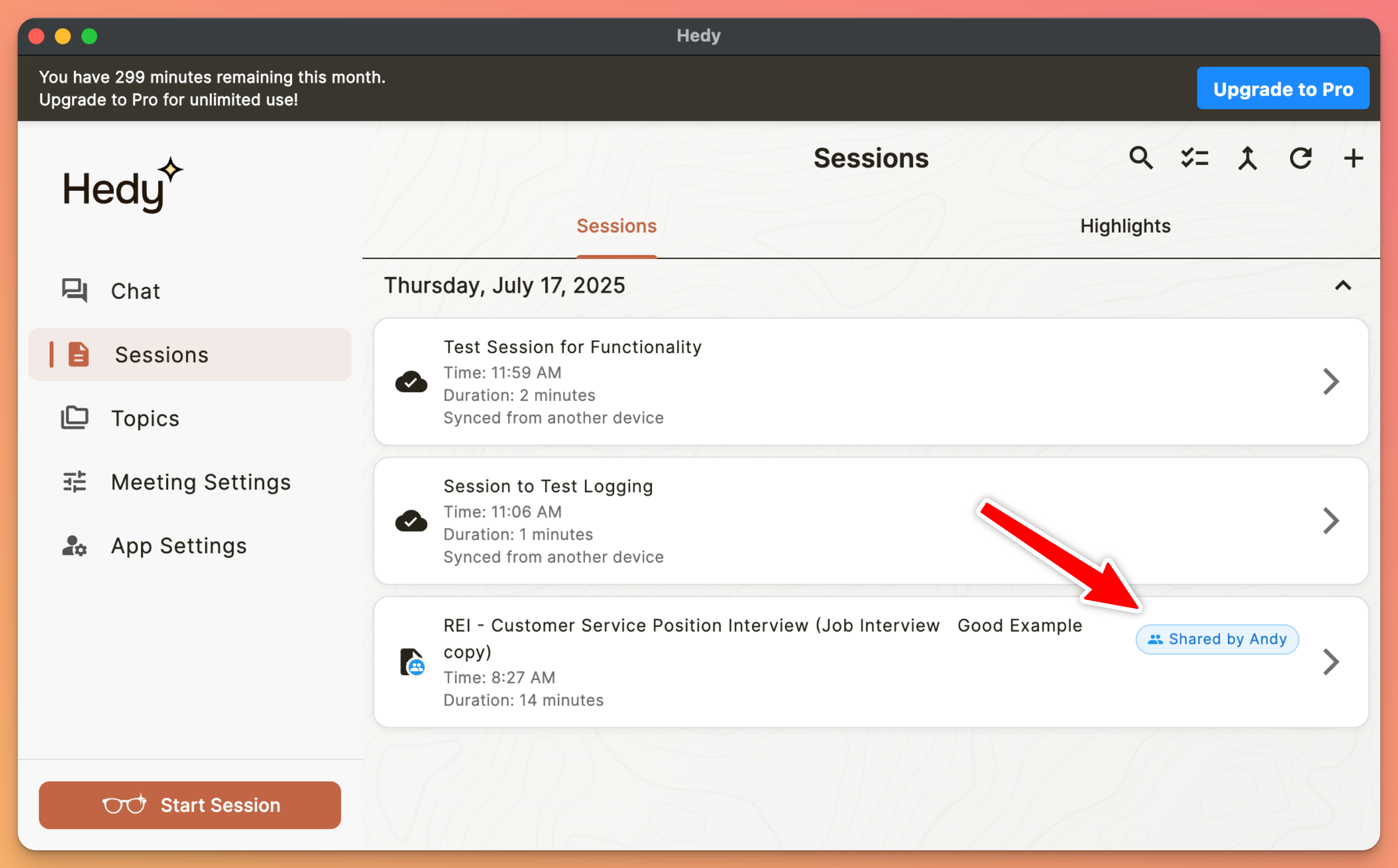
When someone shares content with you, you’ll receive an email with a link
-
The shared content will automatically appear in your regular session list and topics
What Gets Shared
When you invite someone to a session or topic, they get read-only access to everything in it:
-
Full Transcripts: Complete text transcription of the session
-
AI Summaries: All AI-generated insights, key points, and action items
-
Session Metadata: Date, duration, and topic information
-
Future Content: For topics, any new sessions added later are also accessible
A public link works differently. You pick which of those parts appear on the page, and the choice is fixed when you create the link.
Privacy and Security
Your privacy is protected throughout the sharing process:
-
Sign-In Required: Email invitations and invite links are not publicly accessible. Recipients must be signed in to a Hedy account to open one. Public links are the deliberate exception and open without an account
-
Secure Tokens: Share links use cryptographically secure random tokens
-
Single-Use Protection: An invite link can be used once. A public link can be opened any number of times until it expires or you revoke it
-
Expiry: Unused invite links expire after 7 days. Public links use the expiry you chose when you created them: 7, 30, or 90 days, or never
-
Revocable Access: Instantly revoke any share from Share Management
Best Practices
-
Review session content before sharing to ensure no sensitive information is included
-
Use the Share Management screen to monitor active shares
-
Remember that topic shares include all future sessions added to that topic
-
Regularly review and revoke old shares you no longer need
-
Create dedicated topics for content you frequently share with specific teams
Troubleshooting
Recipient didn’t receive email invitation
-
Check the email address for typos
-
Ask them to check spam/junk folders
-
Email sending is asynchronous - wait a few minutes
-
Try generating a link instead and sharing it directly
-
Check if Cloud Functions are operational in your region
Recipient is asked to sign in or create an account
-
This is expected for an email invitation or an invite link. Both require a Hedy account
-
Ask them to create a free account or sign in to an existing account, then open the link again
-
A free account is enough to view shared content, no paid plan needed
-
If they should not have to create an account at all, send them a public link instead. A public link opens a session as a web page with no sign-in
Single-use link says it’s expired or already used
-
Single-use links can only be accessed once
-
Links automatically expire after 7 days if not used
-
Once used, the link becomes invalid immediately
-
Generate a new link from Share Management if needed
Can’t find shared content
-
Shared content appears in your regular Sessions/Topics lists
-
Look for items marked with a share indicator
-
Access Settings → Account → Sharing → Shared with Me tab
-
Make sure you’re signed in to the correct account
-
Try refreshing your session list by pulling down
Want to revoke access to shared content
-
Go to Settings → Account → Sharing
-
Navigate to the “Shared by Me” tab
-
Find the share you want to revoke
-
Tap “Revoke” to immediately remove access
A public link doesn’t work for the person I sent it to
-
Check whether the link has expired or you revoked it
-
Make sure they have the whole address. Chat apps and email clients sometimes break long links across lines
-
Send the link exactly as Hedy copied it, and don’t edit any part of the address by hand
-
If you moved your account to EU data storage, links made before the move stop working. Create new ones from the migrated account
A public link shows a page saying it isn’t available
-
Every failed public link shows the same page on purpose, so nobody can use the response to work out whether a link exists
-
It means one of: the link expired, you revoked it, the session was deleted, or the address is wrong
-
Open the session’s share dialog to see whether the link is still active
I shared something by accident
-
Revoke the link straight away
-
Then assume anyone who already opened the page may still have what they saw. If the content is sensitive, tell the people involved rather than relying on the revoke alone
Pro tip: Create a dedicated topic for content you regularly share with your team. When you share the topic once, all future sessions added to it are automatically accessible to recipients.