

Hedy Isn't Capturing Other Participants in Virtual Meetings
If Hedy’s transcript only shows your own voice during a virtual meeting and not the other participants, it means Hedy is capturing your microphone but not the system audio from your video-call app. On macOS this is almost always a missing Screen & System Audio Recording permission. On Windows it usually works automatically — when it doesn’t, the cause is typically a third-party audio app interfering with the default playback device.
You don’t need to install BlackHole, Stereo Mix, or any virtual audio driver. Hedy handles system audio capture natively on both platforms.
How Hedy Captures Other Participants
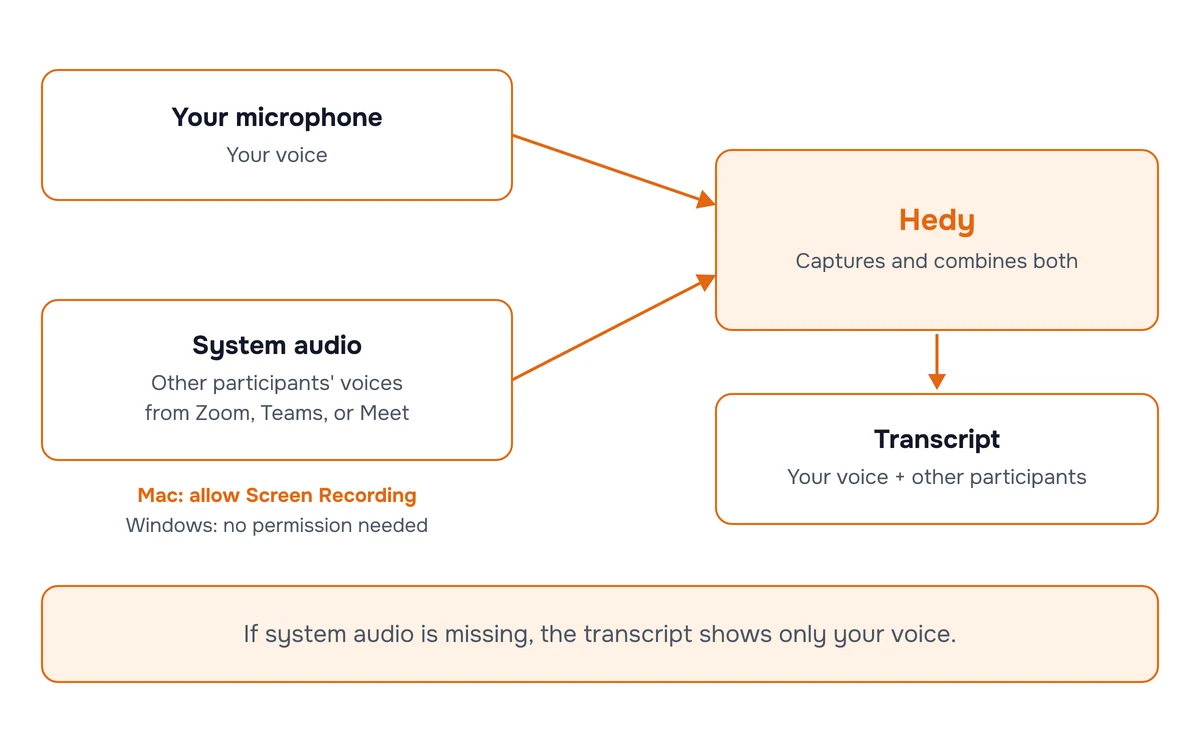
On Mac and Windows, Hedy captures two audio streams in parallel and mixes them:
-
Your voice from the microphone you select in Hedy’s settings
-
The other participants from the system audio your computer is already playing (the same audio you hear from your speakers or headphones during the call)
On macOS, Hedy uses a CoreAudio process tap to capture system audio. On Windows, Hedy uses WASAPI loopback on the default playback device. Neither requires a virtual audio device or any user setup.
Mac: Grant Screen & System Audio Recording Permission
macOS files the permission Hedy needs under screen recording, even though Hedy doesn’t capture your screen. This is the umbrella permission Apple uses for any app that records audio from other apps. Without it, Hedy can capture your microphone but not the rest of the call.
Apple renamed this pane in macOS 15 Sequoia. On macOS 15, macOS 26 Tahoe, and later it is called Screen & System Audio Recording. On macOS 14 Sonoma it is called Screen Recording. Everything below works the same either way.
-
Open System Settings
-
Go to Privacy & Security
-
Click Screen & System Audio Recording (Screen Recording on macOS 14 Sonoma)
-
Make sure Hedy is in the list and the toggle is on
-
If Hedy isn’t in the list, open Hedy first and try starting a session — macOS will surface the prompt then
Hedy will detect the permission change automatically and continue capturing system audio once you turn the toggle on. You don’t need to restart the app, but if capture still fails after granting permission, quitting and reopening Hedy is a reasonable next step.
If permission is missing, Hedy shows a dialog: “Screen Recording permission denied. Please grant Screen Recording permission in System Settings > Privacy & Security.” with options to open Settings, continue with microphone only, or cancel.
If permission is granted but the audio plugin still can’t start capture (rare — usually a transient OS issue), you’ll see a separate error: “Failed to start audio capture on macOS” with the note “System audio unavailable - only your microphone will be recorded.”
Important: macOS resets this permission occasionally — most commonly after major OS updates. If Hedy was capturing the other participants yesterday but isn’t today, re-check this setting first.
Windows: System Audio Should Work Automatically
On Windows, Hedy captures system audio via WASAPI loopback on whatever device is set as your default playback device. There’s no permission to grant. If it isn’t working:
-
Confirm the right playback device is the default. Open Settings > System > Sound and check that the device you’re actually listening through (headphones, speakers, etc.) is set as the default playback device. If your meeting app routes audio to a different device, Hedy will capture silence from the default device.
-
Disable third-party audio enhancement apps like Voicemeeter, Equalizer APO, or manufacturer-specific audio tools. These can intercept the audio stream before Hedy gets a copy.
-
Restart Hedy after changing audio devices. The loopback stream is opened when the session starts, so changing devices mid-session won’t take effect.
Confirm Your Microphone Is Selected Correctly
Hedy lets you choose which microphone to use for your own voice. If you accidentally selected a device that isn’t actually picking up audio (e.g., a USB mic that’s unplugged), the transcript will be silent on your side even when system audio works fine.
-
Open Hedy’s Settings
-
Go to the Sessions tab
-
Scroll to Microphone Settings
-
Choose the input device you actually want to use. “Default System Input” follows whatever your OS is set to use.
The Microphone Settings section explains: “Hedy can capture both system audio (from video calls, etc.) and microphone input. Select which microphone to use below.”
Sanity Check the Setup
Before joining your next important meeting:
-
Open a YouTube video or play something audible on your computer
-
Start a Hedy session
-
Wait 15-20 seconds, then stop the session
-
Check the transcript — you should see text from the video as well as anything you said
If only your voice appears, the system audio path isn’t working — re-check the steps above for your platform.
Related Articles
-
Mac Microphone and Screen Recording Permissions — full breakdown of all macOS permissions Hedy needs
-
AirPods and Bluetooth Headphones Cutting Out — for audio dropouts unrelated to system capture
-
Hedy System Requirements — system audio capture requires macOS 14.2 or Windows 10 version 1809 or later
Still having trouble? Contact us through the chat widget with your OS version, the meeting app you’re using (Zoom/Teams/Meet/etc.), and which audio device you’re listening through. We’ll help you trace the issue.

