

Create Your Own Custom Session Types in Hedy
Pressing play loads the video from YouTube.
A custom session type is a session type you describe yourself. You write a sentence or two about a kind of conversation you have often and what you want from your notes, and Hedy sets up the rest. You need Hedy Pro to create one.
Use one when none of the built-in session types fit closely enough: weekly therapy sessions that need DAP notes, parent-teacher conferences, client check-ins that always cover the same points.
What a custom session type changes
Once you pick a custom session type for a session, it shapes four things:
-
Detailed notes are organized under headings that match your description, up to eight of them.
-
The summary keeps its usual layout but concentrates on what you said matters.
-
Chat knows what kind of conversation this is when you ask Hedy questions about it.
-
Quick prompts: Hedy writes up to four prompts for this kind of conversation. They appear in their own section, titled with your type’s name, and are included in the quick prompt chips. They start at the front of the chips, but their order can change as you use prompts.
Automatic suggestions during a live session work the way they do for the built-in type yours is closest to. Hedy shows you which one that is before you save.
How to create a custom session type
-
Open Settings > Personalization > Custom session types and tap Add Custom Session Type. You can also tap Add Custom Session Type in the session type picker when you start a session.
-
Fill in What happens in these conversations? Plain words are enough, for example: “Weekly therapy sessions with individual clients.”
-
Optionally fill in What do you want from your notes? Name a format or the things to track, for example: “DAP format. Track the client’s goals and anything to follow up next week.”
-
Tap Continue. Hedy reads your description and shows what it understood.
-
Check the preview, then tap Save.
You don’t have to write instructions for the AI or learn a special format. Describe the conversation the way you’d describe it to a colleague.
What the preview shows
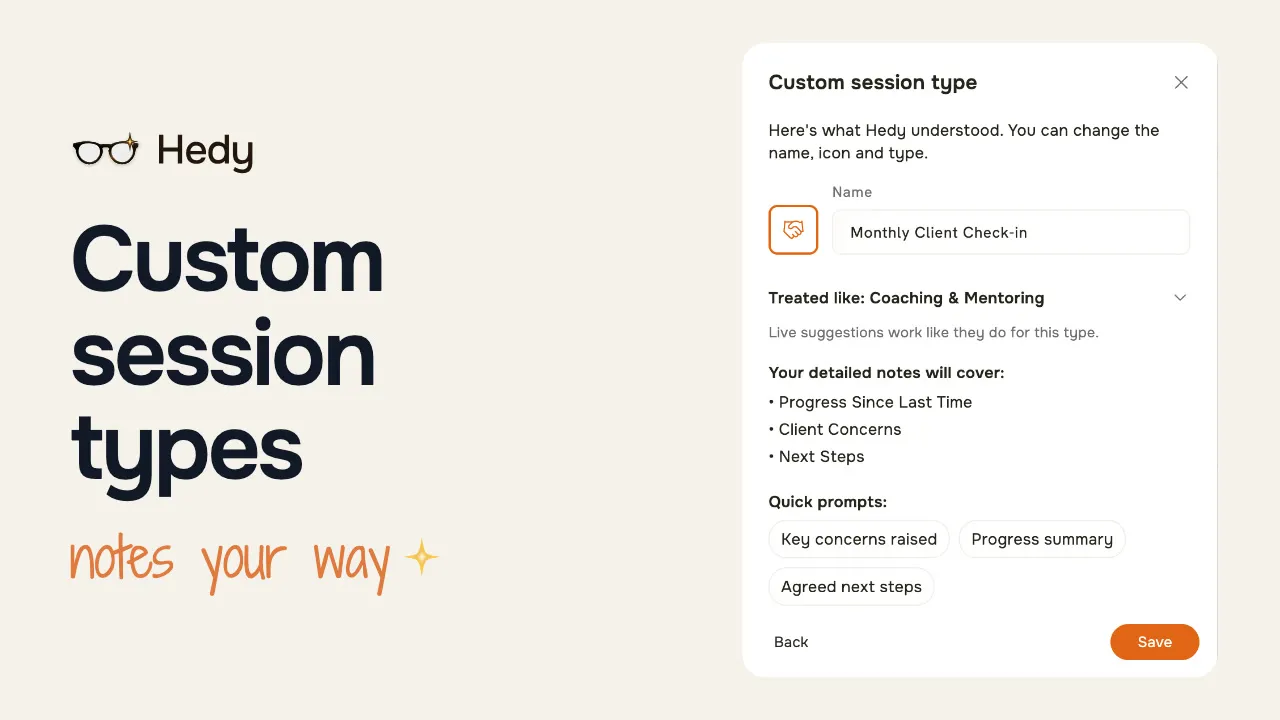
Before you save, the preview shows what Hedy took from your description:
-
A name and an icon, both of which you can change.
-
Treated like: the built-in session type yours is closest to. Live suggestions follow this type. You can pick a different one.
-
Your detailed notes will cover: the headings your detailed notes will use. If this says Hedy will use its standard detailed notes for the type, your description didn’t ask for anything specific. Tap Back (or Edit description if you’re editing a type you already saved) and say what you want the detailed notes to contain.
-
Quick prompts: the prompts Hedy wrote for this kind of conversation.
If the headings or prompts aren’t what you expected, tap Back (or Edit description), add detail, and tap Continue again. If you see “Hedy couldn’t read that just now. Try again.”, tap Continue again. Nothing is saved until you tap Save.
Using a custom session type
Your custom session types appear at the top of the session type picker when you start a session. They also appear when you import an audio or video file, import an online video, or paste in an existing transcript.
To switch a session you already have to a custom session type, open the session and pick it from the session type dropdown in the Details tab. Then regenerate the summary and notes if you want the existing ones rewritten to match.
With Cloud Sync on, custom session types sync across your devices, so one you create on your phone is ready on your Mac.
Editing and deleting
Open Settings > Personalization > Custom session types and tap the one you want to change.
-
Name, icon and Treated like save as soon as you tap Save.
-
The description needs another look from Hedy: change it, tap Continue, check the new preview, then tap Save.
Editing a custom session type only affects sessions you have from then on. Sessions you’ve already had keep the summaries and notes they were created with.
If you delete a custom session type, past sessions still keep their summaries and notes. You can’t undo a delete.
Common questions
Do I need Hedy Pro? Yes, to create a custom session type. If your plan changes from Pro to free, the custom session types you already made keep working and you can still edit them, but you can’t add new ones.
Can I add my own background, like my role or my clients? That belongs in a session context, which works alongside any session type, custom or built-in. The custom session type describes the kind of conversation, and the context describes who you are and what you’re working on.
Where does my description go? It is processed the same way as your summaries. If you use Local AI, Hedy reads your description on your own device and never sends it to a cloud service.