

How to Use Hedy for Classes and Courses
Hedy listens to a class and turns it into a transcript, a recap, and study notes you can ask questions about later. A transcript is a word-for-word write-up of what was said.
It fits university lectures, continuing-education courses, professional certificates, doctoral and executive programs, and webinars. You are attending, not teaching, and the class moves faster than you can write. Hedy keeps a record you can search for the rest of the course.
Pick Your Device First
Do this before you touch any settings. The wrong device gives you a transcript with only your own voice in it, and no setting fixes that afterwards.
You are in the room. Put your phone on the desk with the microphone facing the instructor. Not in a bag, not in a pocket.
The class is on Zoom, Teams, Webex, or Meet. Use the Hedy app on a Mac or Windows computer, not your phone. It hears the class through the computer itself, the same sound coming out of your headphones or speakers, and hears you through the microphone. Both go into one transcript. A phone beside your laptop only hears the room, which is a worse recording of the same class. A watch has the same problem.
You are in the room and some people join on a call. Use the desktop app if you have a laptop open. It picks up the room through the microphone and the remote voices through the call.
You only have a phone or tablet for an online class. Play the class through speakers rather than headphones, and put the phone next to those speakers. On headphones, Hedy cannot hear the instructor at all. Setting up your first Hedy session covers this setup.
If a transcript later shows only your own voice, the computer audio is not reaching Hedy. See Hedy not capturing other participants in virtual meetings. On a Mac it is almost always the Screen Recording permission.
Check Whether You May Record the Class
Read your course policy and ask your instructor before your first session. Many courses are fine with a note-taking app. Many do not allow recording the audio.
Keeping a recording for playback is separate from transcription. You can leave Save Session Audio off, but supported on-device engines may still keep temporary audio while they finish processing. If your course does not allow audio to be stored, also turn off Temporary audio cache in Settings → Privacy & System and check the course policy before using Hedy. See recording and managing audio sessions for the playback setting.
If you do turn it on, read recording laws and consent first.
If You Cannot Listen and Take Notes at the Same Time
Doing both at once is what breaks down, even when the material is easy. If you have ADHD or an auditory processing difference, if the class is not in your first language, or if you are just having a bad day, start the session and listen. The transcript is your notes. Scroll back to the moment you lost the thread. Ask about it after class.
When something matters and you do not want to hunt for it later, tap to save it as a highlight. That works during any session and takes one tap.
Hedy is not a replacement for accommodations arranged through your institution. If you have a formal note-taker, captioning, or extended time, those still apply. This is something you can add for yourself alongside them.
If Your Class Starts in Two Minutes
You do not need the setup below to get value from today’s class. Pick your device, set the session type to Lectures and Webinars, tap Start, and listen. Add the rest afterwards. A topic created later still works. A class you never started does not, unless it was recorded and you import the file later.
Step 1: Set the Session Type to Lectures and Webinars
Before your first class:
-
Open Settings and go to the Sessions tab
-
Select Lectures and Webinars as your session type
This tells Hedy you are attending, not teaching. It will not treat the instructor’s words as yours. It calls them the lecturer or the professor rather than guessing. Your to-do list holds only your own work, like readings, practice problems and exam preparation, and not the things the instructor said they would do. Understanding Hedy session types covers the rest.
Step 2: Tell Hedy Who You Are
This half of the setup is about you, and it stays the same in every course. Tap Session Context, a short note about you that Hedy reads before each class. Write it once, then save it as a custom context, which is a saved Session Context you can reuse, so every new session starts from it.
What belongs here:
Who you are and what you are studying
Your program, your year or stage, and your background. A first-year nursing student and a manager three months into an executive course need different things explained.
What you already know
The subjects you are comfortable in and the ones you are not. This stops Hedy explaining things you already know while skipping the part that actually lost you.
How you want to be helped
Your first language if you are studying in another one, and anything about how you learn. If you want every new term defined in plain language, say so.
Example session context: “I am in the first year of a nursing program, and I also take a weekend course in health policy. I know basic anatomy. Statistics is new to me. English is my second language. When a new term comes up, define it in plain language the first time. You can assume everyday clinical words.”
Leave the course itself out of this note. Each course gets its own topic in the next step.
Step 3: Create One Topic for Each Course
A topic is a folder that holds every session from one course. This is the step that lets Hedy work across your whole course rather than one class at a time.
-
Create a topic named after the course
-
After each class, assign that session to the course topic
-
Open the topic, go to its Settings tab, and put the course details into AI context & instructions. It saves on its own
That third part is Topic Context: a note attached to the course that Hedy applies to every class inside it. Put in the instructor’s name, the subject and level, the textbook or reading list, the words that come up every week, and what you are working toward, whether that is a thesis, an exam, a certificate, or a final project.
Four words this guide keeps apart. A class is one meeting. A course is the whole subject over a term. A session is one Hedy recording of one class. A topic is the folder that holds every session in the course.
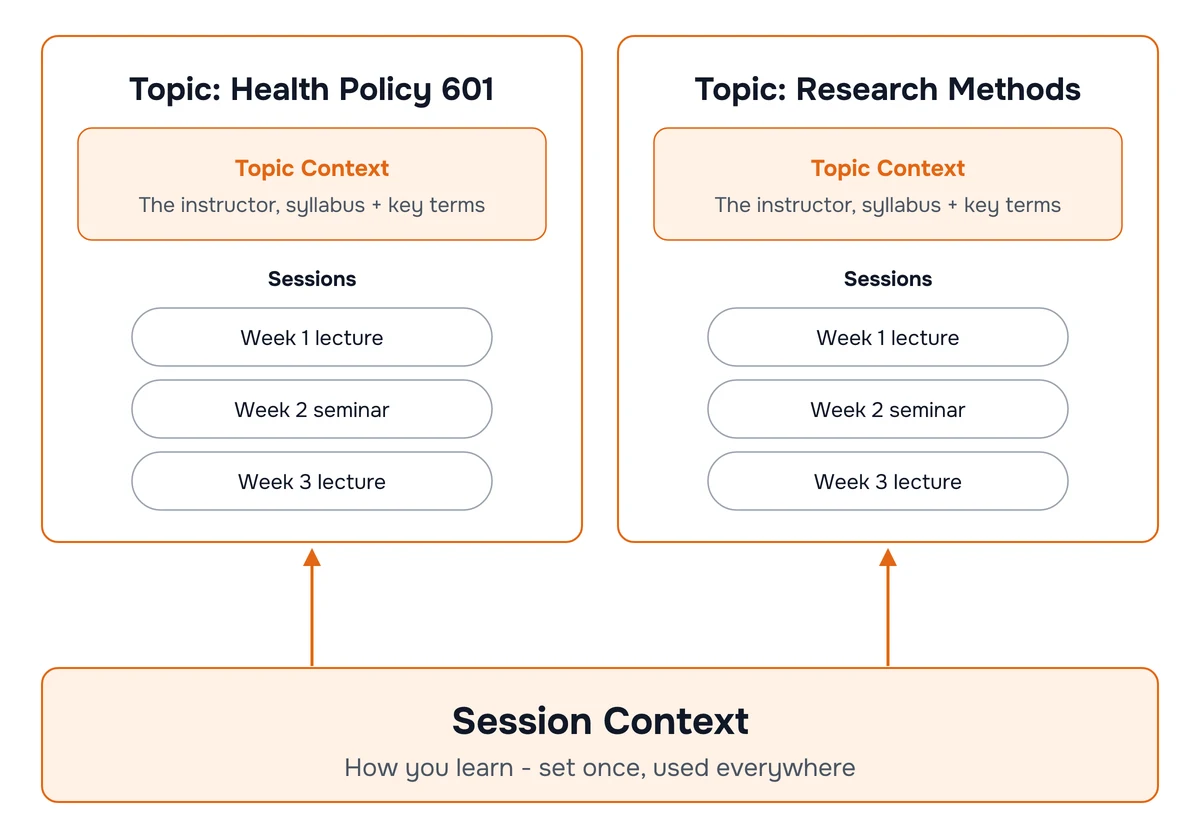
Once the sessions are grouped, Hedy can work across them. During a class it can point out that the professor is contradicting week three, or that today’s idea rests on one from September. Afterwards you have one chat covering the whole course instead of twelve separate conversations.
One topic per course is the default. It is right for a degree where the courses are separate subjects.
Use one topic for a whole program when the classes build on each other continuously, like a year-long doctoral program. If you are not sure, use one per course. A course is easier to search inside than a program.
Free accounts include one topic with all its features, five hours of transcription a month, and live suggestions for the first 30 minutes of each session. One three-hour class uses most of a free month, and the live suggestions stop long before that class does. On the free plan, give your heaviest course the topic. Pro has unlimited topics and no time limit.
Step 4: Sit in the Class
Start the session and put the device down. Hedy needs nothing from you while the class runs.
Automatic suggestions appear on their own, at most three at a time, and only when they are worth looking away from the instructor. In a class that is usually a concept worth clarifying, a question you could ask out loud, an answer to something just raised in the room, or a link back to an earlier week in this topic.
Quick Actions You Can Tap Anytime
When you want something specific, tap a quick action. The full list is in the Lectures and Webinars quick prompts reference, grouped by what you are trying to do:
Help Understand for a summary of the main ideas so far, a recap of the last two minutes when you drifted, a translation of the last minute into your own language, or a concept explained from scratch.
Active Participation for a question worth asking out loud, or the likely answer to the one the lecturer just posed.
Note-Taking for the main points and the examples worth remembering.
Critical Thinking for evaluating the argument being made, or applying an idea to a new situation.
Follow-up for what still needs study, and review questions built from what was covered.
Step 5: Review and Study Afterwards
Hedy produces two documents after every class, both described in session recaps and detailed notes.
Session Recap is the short version, scaled to the length of the class. It has an Overview of what was covered, Key Concepts with definitions and examples, and Recommended Follow-ups holding only the readings and practice problems the instructor actually named. Your to-dos hold only work you can do yourself.
Detailed Notes is the long version, written to leave nothing out. It is easier to cut a full set of notes down than to rebuild a missing piece.
Then, at exam time, ask questions of the topic rather than of one session. “What has this course said about blood pressure regulation all term” draws on every class in the topic at once.
Use the recap and the chat to study. If your course has rules about submitting your own work, those still apply to anything Hedy writes.
Long Classes, Breakouts, and Auto-Pause
Breakout rooms are captured like anything else. Your meeting app plays breakout audio through the same output as the main room, so the desktop app picks it up without you doing anything when you are moved.
Long sessions run fine, but plan the power. Three hours on a phone will use a lot of battery. Plug in, or use the desktop app where you can. The background operation guide covers keeping a long session alive on mobile.
Auto-pause is off unless you turned it on. If it is on, a long quiet stretch will pause the session: solo work time, waiting to be moved into a breakout, a coffee break. You get a warning banner with a countdown first, and tapping I’m Still Here keeps it going. See auto-pause after inactivity.
One class, one session. Keep a single session running through the break if you can, because it keeps the recap in one piece. If you did stop and start again, merge the two sessions.
Names and Terms Hedy Spells Wrong
Every subject has words that transcription gets wrong, and a course tends to use the same twenty of them every week. Add them once with the custom vocabulary guide, which is a list of words Hedy should spell correctly: drug names, statistical methods, case citations, your professor’s surname. It applies to every session, so a fix in week one holds for the rest of the course.
What Hedy Will Not Do
-
Join your class as a bot. Hedy runs privately on your own device. Nothing joins the Zoom, Teams, Webex or Meet call, and nobody sees an extra participant.
-
Save the audio unless you turn that on. Transcribing and recording are separate. You can use Hedy through a whole course with audio recording switched off.
-
Take the class for you. The suggestions are prompts. What you ask, and whether you ask anything at all, is yours.
Tips for Best Results
-
Update the topic context as the course moves. One line when the syllabus, or course outline, reaches a new unit is enough. By week eight Hedy is working from what the course has actually become rather than what the outline said in week one.
-
Add the recorded classes you missed. If a class you skipped was posted as a video or audio file, import it into the same topic. It joins the rest of the course and becomes searchable with everything else.
-
Write names down yourself when you can. Put an author, a case, or a classmate’s name into your session notes as you hear it. Hedy trusts your notes over the transcript for spellings, so what reaches your recap is what you wrote rather than what the transcription guessed.