

How to Use Hedy for Sermons and Bible Study
Hedy listens to a sermon and gives you a transcript, a recap, and a list of every passage the preacher referenced. You can ask it about a single message or a whole series. A transcript is a word-for-word write-up of what was said.
It works for Sunday sermons, midweek services, Bible studies, small groups, conferences, and sermons you watch online. You are listening, not preaching. Hedy keeps the record so you can put the pen down and pay attention.
Pick Your Device First
Do this before you change any settings. Put the device in the wrong place and Hedy hears the people around you instead of the pulpit, and no setting fixes that afterwards.
You are in the sanctuary. Put your phone on the pew or your Bible with the microphone facing the front. Not in a bag or a pocket. In a large room the sound system usually carries the preacher’s voice well, so sitting closer helps less than you would expect. Sitting away from a loud speaker stack helps more.
You watch the service online. Use the Hedy app on a Mac or Windows computer. It hears the livestream through the computer itself, the same sound that comes out of your speakers or headphones. A phone held up to the laptop only hears the room, which is a worse recording of the same sermon.
The sermon was already posted. If your church uploads its messages to YouTube, Vimeo, or Facebook, paste the link into Hedy with importing online videos. Hedy treats it like a live session, so you get the same recap and notes.
You are in a small group or Bible study. Put the phone in the middle of the table. Hedy picks up everyone in the room, not just the leader.
Ask Before You Record
Many churches already publish their sermons online, so a note-taking app in the pews rarely raises an eyebrow. Some churches still prefer that nobody records. If you are not sure, ask.
A small group is different. People share personal things there, so ask the group first. Pause the session during prayer requests and sharing time, and start it again when the study resumes.
Keeping a recording for playback is separate from transcription. You can leave Save Session Audio off, but supported on-device engines may still keep temporary audio while they finish processing. If you do not want audio stored at all, also turn off Temporary audio cache in Settings → Privacy & System. See recording and managing audio sessions for the playback setting, and recording laws and consent for the legal side.
If the Service Starts in Two Minutes
You do not need the setup below to get value from this Sunday. Put your phone down, set the session type to Spiritual Teaching, tap Start, and listen. Do the rest this afternoon. A topic created later still works. A sermon you never started does not, unless your church posts it online and you import it later.
Step 1: Set the Session Type to Spiritual Teaching
Before your first service:
-
Open Settings and go to the Sessions tab
-
Select Spiritual Teaching as your session type
This tells Hedy you are listening, not preaching. It calls the preacher the speaker or the pastor rather than treating their words as yours. Your to-do list holds only things you can do yourself, like reading a passage the pastor mentioned or practicing what was taught, never the pastor’s own announcements. Understanding Hedy session types covers the rest.
Step 2: Tell Hedy About Your Faith Background
This half of the setup is about you, and it stays the same every week. Tap Session Context, a short note about you that Hedy reads before each session. Write it once, then save it as a custom context, which is a saved Session Context you can reuse, so every new session starts from it.
What belongs here:
Your tradition and church
Your denomination or tradition, and the name of your church. A Reformed Baptist and a Catholic will hear the same passage explained differently. Hedy should explain it the way your tradition would.
The Bible you read
The translation you use, such as ESV, NIV, KJV, or NRSV. Hedy uses it when it quotes a verse or gives you background on a passage.
What you want help with
How long you have been reading the Bible, the parts you know well, and the parts you do not. If you are new to faith, say so, and Hedy will explain terms like “justification” or “covenant” instead of assuming them.
Example session context: “I attend Grace Community Church, a non-denominational evangelical church. I read the ESV. I have been a Christian for three years and I know the Gospels well, but the Old Testament and Paul’s letters are newer to me. When the pastor uses a theological term, explain it in plain language. Keep explanations within mainstream evangelical teaching.”
Leave the sermon series itself out of this note. Each series gets its own topic in the next step.
Step 3: Create One Topic for Each Sermon Series
A topic is a folder that holds every session from one series. This is what lets Hedy work across the whole series, not one Sunday at a time.
-
Create a topic named after the series, such as “Romans: The Gospel of Grace”
-
After each service, assign that session to the series topic
-
Open the topic, go to its Settings tab, and put the series details into AI context & instructions. It saves on its own
That third part is Topic Context: a note attached to the series that Hedy applies to every sermon inside it. Put in the pastor’s name, the book or theme being preached, the passages planned for the series if your church publishes them, and any study guide or reading plan that goes with it.
Three words this guide keeps apart. A series is a run of sermons on one book or theme. A session is one Hedy recording of one sermon. A topic is the folder that holds every session in the series.
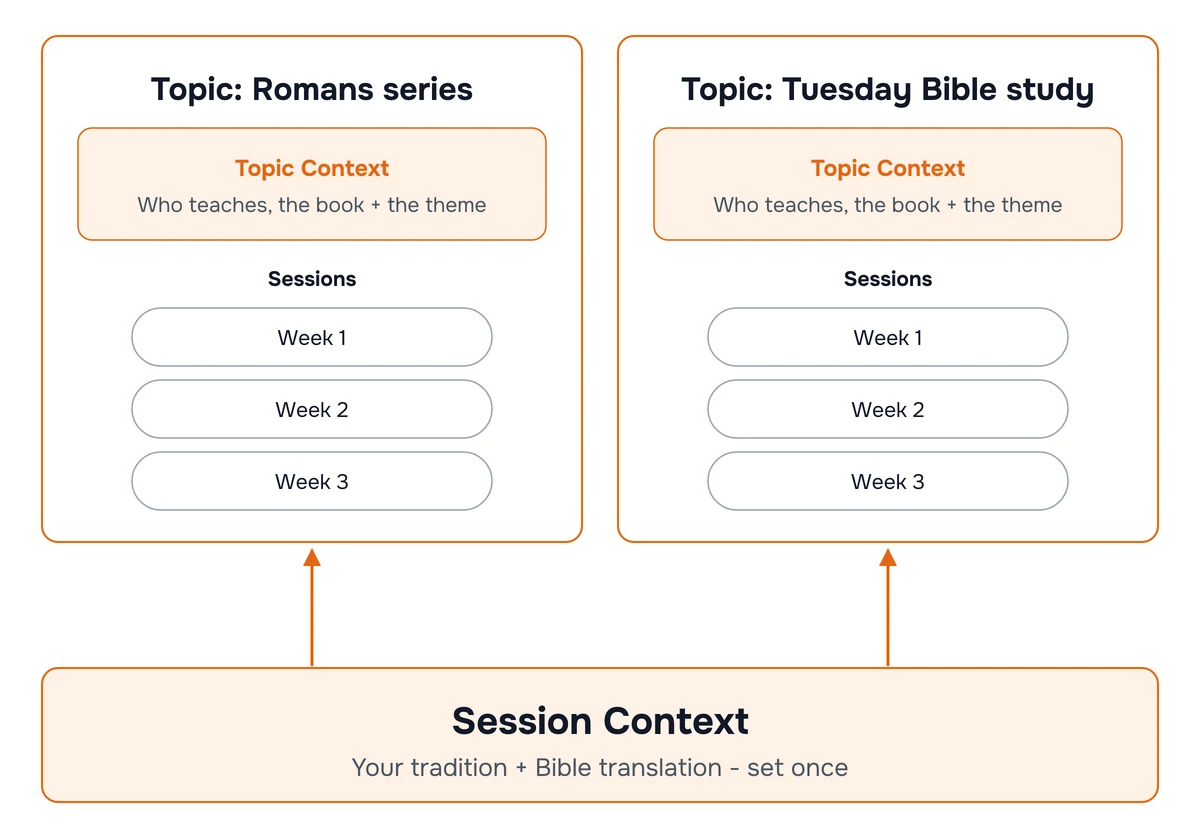
Once the sermons are grouped, Hedy can connect them. During a message it can point out that today’s passage picks up the argument from three weeks ago. Afterwards you have one chat covering the whole series instead of a dozen separate ones.
If your church does not preach in series, make one topic for your church’s Sunday sermons and one for each Bible study or small group you attend. A weekly study working through one book is a series too.
Free accounts include one topic with all its features, five hours of transcription a month, and live suggestions for the first 30 minutes of each session. Five hours covers a 40-minute sermon every week of the month with room to spare. On the free plan, give your main series the topic. Pro has unlimited topics and keeps live suggestions running through a full service.
Step 4: Listen to the Sermon
Start the session and put the phone down. Hedy needs nothing from you while the pastor preaches.
Automatic suggestions appear on their own, at most three at a time, and only when they are worth a glance. In a sermon that is usually the background to a passage that was just read, a plain-language explanation of a term, or a question worth bringing to your small group.
Quick Actions You Can Tap Anytime
When you want something specific, tap a quick action. The full list is in the Spiritual Teaching quick prompts reference, grouped by what you want:
Deepen Understanding for the main point so far, a recap of the last five minutes, a term explained, or the background to the passage the pastor just quoted.
Reflect for a personal reflection question, the deeper meaning behind a story or parable, or how the message challenges the way you usually think.
Connect to Life for one practical thing to do this week, a simple daily practice, or how the message applies to your relationships.
Explore Further for related passages and readings, and the key terms worth studying.
Hedy’s explanations are general background, not your church’s teaching. If an explanation and the sermon disagree, take the question to your pastor or your small group leader.
Step 5: Review and Study Afterwards
Hedy produces two documents after every sermon, both described in session recaps and detailed notes.
Session Recap is the short version, scaled to the length of the sermon. It has an Overview of the message, the Core Teachings, and, when the pastor suggested any, Practices and Further Study.
Detailed Notes is the long version, written for review and reflection. It has the Key Teachings, the Stories & Illustrations the pastor used, Life Application, Reflection Prompts you can journal on, and Action Steps. It also has Referenced Texts & Readings, a list of every scripture passage, book, or quote from the sermon, with how the pastor used each one.
That list is the part most people come back for. Open it before your small group meets, or use it to read the passages again during the week.
Then ask questions of the series topic rather than one session. “What has Pastor James said about grace across this whole series?” draws on every sermon in the topic at once.
Names and Terms Hedy Spells Wrong
Transcription gets biblical names and church words wrong: Melchizedek, Habakkuk, Nebuchadnezzar, your pastor’s surname, the name of your church’s youth ministry. Add them once with the custom vocabulary guide, a list of words Hedy should spell correctly. It applies to every session, so a fix this week holds for every week after.
You can also type a name or reference into your session notes as you hear it. Hedy trusts your notes over the transcript for spellings.
What Hedy Will Not Do
-
Replace your Bible. Hedy names the passages and gives you background on them. Read them in your own Bible.
-
Save the audio unless you turn that on. Transcribing and recording are separate. You can use Hedy every Sunday with audio recording switched off.
-
Tell you what to believe. The suggestions are prompts for your own reflection and study. What you do with them is yours.
Tips for Best Results
-
Tap to keep a line. When something the pastor says lands, save it as a highlight. It takes one tap and you can find it later without scrolling.
-
Add the Sundays you missed. If you were away and your church posted the sermon, import it into the same topic. The series stays complete.
-
Update the topic context as the series moves. One line when the series reaches a new chapter is enough.
-
One service, one session. Keep a single session running from the reading to the end of the sermon. If you stopped and started again, merge the two sessions.