

How to Use Hedy for Legal Consultations
Hedy listens to a client meeting and gives you a transcript, a summary, detailed notes and your follow-ups. While the client talks, it suggests questions you haven’t asked yet. You stay focused on the client instead of on your legal pad.
It works for intake consultations, follow-up meetings, strategy sessions, witness preparation and calls on Zoom, Teams or the phone. This guide covers the setup lawyers ask about most: keeping a privileged conversation on your own device, getting the client’s consent, and organizing sessions by matter.
Get the Client’s Consent First
Tell the client before you start, and get a clear yes. Bar guidance treats this as required, not courteous: the New York City Bar’s Formal Opinion 2025-6 says clients must be notified, and their consent obtained, before a lawyer uses AI to record and summarize their conversations. Recording laws apply on top of that: several states require everyone’s consent for some private conversations, and the rules can differ between phone calls and in-person meetings.
Hedy makes the ask easier to answer, because by default it transcribes on your device and does not keep the audio. Something like:
“I use an app called Hedy to take notes during our meetings. It transcribes on my own laptop and doesn’t keep a recording. Is that all right with you?”
If you’ve set Hedy up to keep everything on your device (next section), you can also say that nothing from the meeting leaves your laptop. With the default cloud AI analysis, don’t say that.
If the client says no, take notes by hand. A note in your engagement letter is a good place to explain your practice in advance, but ask again at the meeting. Recording laws and consent covers the legal side, and How to Ask Permission to Record a Meeting has more wording.
Meetings with opposing counsel, witnesses or other third parties raise different questions from a meeting with your own client. The New York City Bar’s Formal Opinion 2026-2 recommends asking their permission and, absent a good reason, not recording them at all. Check your jurisdiction’s rules first, and never capture one of these conversations without saying so.
Keep the Conversation on Your Device
Do this once, before your first client meeting. A conversation can leave your device by five separate paths, and each has its own setting. Keep Sensitive Conversations on Your Device walks through all five. For client work, the ones that matter most:
-
Speech recognition stays local. In Settings, under Speech Recognition Options, keep Whisper (local) or choose a Nemotron (local) option. This is the default, so it’s usually a check rather than a change.
-
Choose Local AI if your device can run it. Go to Settings → Speech & AI → AI Processing and choose Local AI. Summaries, notes, chat and live suggestions are then generated on your device. This needs an Apple Silicon Mac, a Windows PC with a Vulkan-capable GPU, an iPhone 15 Pro or later, or an M-series or A17 Pro iPad. See Local AI Processing.
-
Turn Cloud Sync off in Settings → Privacy & System → Privacy Preferences. Sessions then stay on the device that captured them.
-
Leave Auto Email Recap off in Settings → Automation & Data, so no recap goes to an inbox.
If your device can’t run Local AI, Hedy’s cloud AI analysis is used instead: Hedy’s AI-processing partners handle the session information to produce your notes without retaining it or using it for model training. If that isn’t acceptable for a particular matter, choose Off under AI Processing and you’ll get the transcript only.
No bot joins your calls. Hedy hears a video call through your own computer’s audio, the same way you do, so nothing appears in the participant list. On a Mac, you can also take a phone call on the computer and Hedy hears both sides.
If the Client Is Already Here
You don’t need the rest of this guide to use Hedy today. Ask for consent, choose the Business Meeting session type, tap Start, and talk to your client. Do the setup below afterwards. You can move today’s session into the matter’s topic later.
Step 1: Create a Client Consultation Session Type
Hedy has no built-in legal session type, so make your own. A custom session type tells Hedy what kind of conversation this is and how to organize your notes. Creating one requires Hedy Pro. On the free plan, use Business Meeting.
Open Settings > Personalization > Custom session types and tap Add Custom Session Type.
What happens in these conversations?
Confidential meetings between me, a lawyer, and my client. The client explains their situation, I ask questions to establish the facts and their goals, and I explain options and next steps.
What do you want from your notes?
Organize the notes into: Client and Parties, Facts and Timeline, Client’s Goals, Legal Issues Raised, Documents Needed, Advice Given, and Next Steps. Put every date the client mentions into the timeline. Keep what the client said separate from what I advised. Mark anything uncertain or disputed as unconfirmed. Leave out anything we did not discuss.
Tap Continue, check the preview and tap Save. If the headings don’t fit your practice, tap Back and adjust the description. A family lawyer might add “Children and Custody”, an estate planner “Assets and Beneficiaries”. You can make more than one type: a separate one for intake calls and one for strategy meetings works well.
Hedy also writes up to four quick prompts for the new type. Choose it from the session type picker when you start your next consultation.
Step 2: Describe Your Practice in Session Context
This half of the setup is about you, and it stays the same for every client. Tap Session Context, write it once, and save it as a custom context so every new session starts from it.
What belongs here:
Your practice area and jurisdiction. “Residential landlord-tenant law in California” tells Hedy which questions matter and which terms to expect.
Who you usually represent. Tenants or landlords, employees or employers, individuals or businesses.
What you want help with during the meeting. For example: catch dates and deadlines, notice when a fact is missing, keep track of documents the client mentions.
Example session context: “I’m a solo attorney practicing residential landlord-tenant law in California. I represent tenants. In consultations, help me establish the timeline, notice dates that affect deadlines, and list every document the client mentions. Don’t suggest legal conclusions. Suggest questions instead.”
Leave out client names and matter details. Each matter gets its own topic in the next step.
Step 3: Create One Topic for Each Matter
A topic is a folder that holds every session for one matter: the intake, each follow-up, the strategy call before mediation. This is what lets Hedy work across the whole matter instead of one meeting at a time.
-
Create a topic named after the matter, such as “Miller lease dispute”
-
After each meeting, assign that session to the matter’s topic
-
Open the topic, go to its Settings tab, and put the matter details into AI context & instructions. It saves on its own
That third part is Topic Context: a note attached to the matter that Hedy applies to every session inside it. Put in the parties and their roles, the key dates and deadlines you know about, the issues still open, and anything to handle with care.
Example topic context: “Client: Dana Miller, tenant. Landlord: Westside Properties LLC, managed by Greg Hall. Lease signed March 2024, 12 months, then month-to-month. Landlord served a 60-day notice on September 30, 2026. Client says repairs to the heating were requested in writing twice. Open questions: whether the notice was properly served, and whether the repair requests were retaliation-protected.”
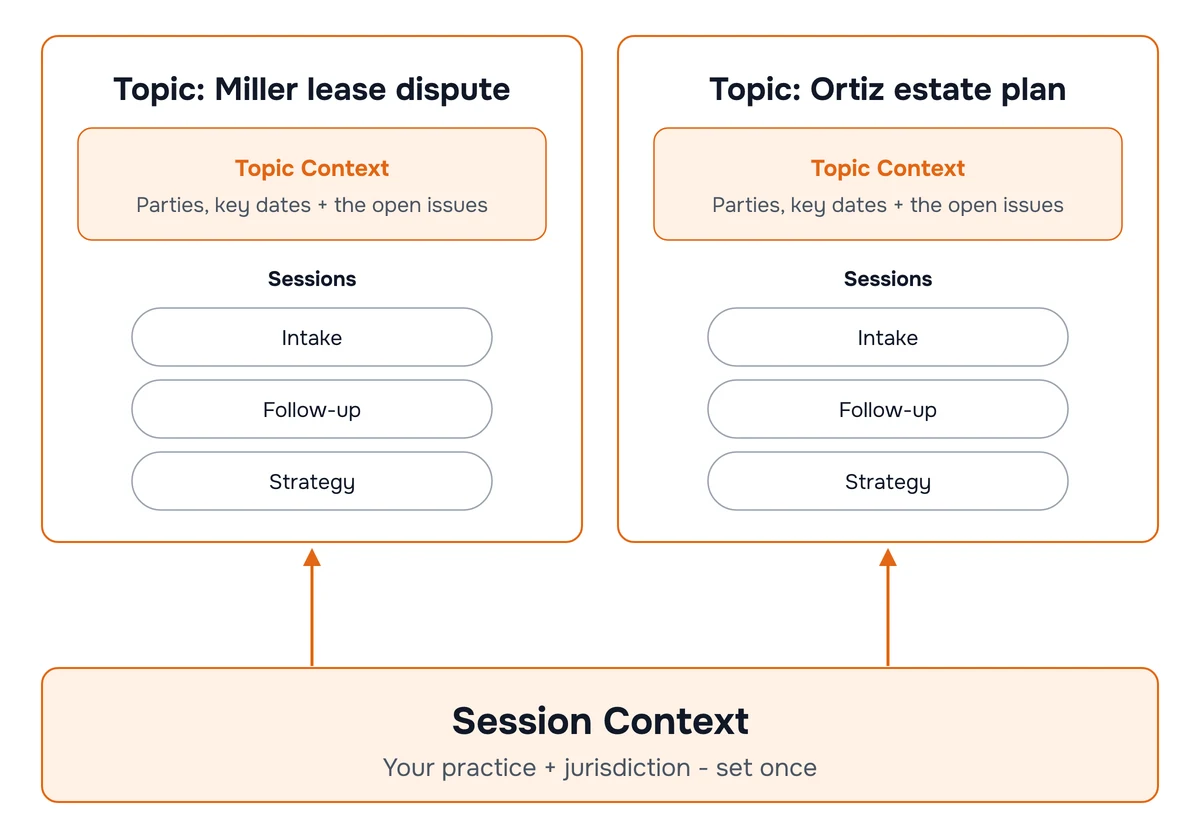
Once a matter’s sessions are grouped, Hedy can connect them. During a follow-up it can point out that today’s account of an event differs from what the client said at intake. Afterwards you can ask one question across the whole matter: “When did the client first report the heating problem?”
Free accounts include one topic with all its features, five hours of transcription a month, and live suggestions for the first 30 minutes of each session. Pro has unlimited topics, which you’ll want with more than one active matter.
For a firm: with Hedy Team, a team topic collects sessions from several colleagues in one place. Team topics need Cloud Sync, and everyone on the team can read a session assigned to one, so keep them for matters the whole team works on and keep personal topics for the rest. Hedy Team privacy and Cloud Sync explains what is shared.
Step 4: Hold the Consultation
Start the session and put the device down where it can hear both of you. Hedy needs nothing from you while you talk.
Automatic suggestions appear on their own, at most three at a time. In a consultation they’re usually a question worth asking: a date the client skipped, who else was present, whether there’s a written record of a conversation, what the client wants to happen.
Tap a quick prompt when you want something specific. Your Client Consultation type comes with prompts Hedy wrote for it. You can add your own from quick prompts, for example a recap of everything said about one event, or a list of the documents the client has mentioned so far.
Save a moment with a highlight when the client says something you’ll want to find again word for word.
Type into session notes as you go: a case number, a spelling of a name, a point you want in the record. Hedy uses your notes when it writes the summary.
Keep your eyes on the client. Glance at the suggestions in a pause, not mid-answer.
Step 5: Review the Notes Before You Rely on Them
After the meeting Hedy produces a Session Recap and Detailed Notes, organized under the headings from your session type. Both are described in session recaps and detailed notes. Your follow-ups appear as to-dos with suggested due dates.
Read them against your own memory of the meeting before you rely on them, and correct anything wrong. A transcript can mishear a name or a number, and a summary can compress two statements into one. Bar guidance is clear that the lawyer checks AI work product, and that applies here. Edit the transcript and regenerate the notes if something important was misheard.
Then decide what to keep. A transcript of a client meeting is a record like any other in the file: keep it as long as you’d keep your notes, and delete it from the session menu when you no longer need it.
Names and Terms Hedy Spells Wrong
Transcription gets party names, case names and legal terms wrong: the client’s surname, the opposing company, “estoppel”, “voir dire”, a statute number. Add them once in custom vocabulary, a list of words Hedy should spell correctly. It applies to every session.
What Hedy Is Not
-
A source of legal advice. Suggestions are prompts for your own judgment. The advice is yours.
-
A court reporter. A Hedy transcript is your working notes, not a certified record of a deposition or hearing.
-
A substitute for your file. Copy what matters into your case management system.
Tips for Best Results
-
Put the device between you and the client, not in front of you alone. Hedy picks up both voices better, and it signals that you’re not hiding anything.
-
Pause the session if the client steps out, a colleague interrupts on another matter, or the conversation turns to something the client asked you not to note.
-
Import a recording you already have. If a client meeting was recorded with consent elsewhere, import the audio into the matter’s topic.
-
Use the matter chat before the next meeting. Ask the topic “What did we agree the client would send me?” and start the follow-up prepared.
This guide is general information, not legal or ethics advice. Rules on consent, confidentiality and AI use vary by jurisdiction, so check your bar’s guidance.